Pencil Feature
Video Tutorial
Pencil Tool Tutorial
Learn how to use the Pencil tool for freehand drawing and cutouts with adjustable brush sizes.
Overview
The Pencil feature is a freehand drawing tool that allows you to create smooth, curved measurements and cutouts. Perfect for irregular shapes, organic features, and detailed work where the point-and-click Draw tool is less efficient.
How the Pencil Tool Works
The Pencil tool operates in two modes:
- Pencil Mode - Single-size freehand drawing for precise work
- Brush Mode - Variable brush sizes for different coverage needs
Switching Between Pencil and Brush
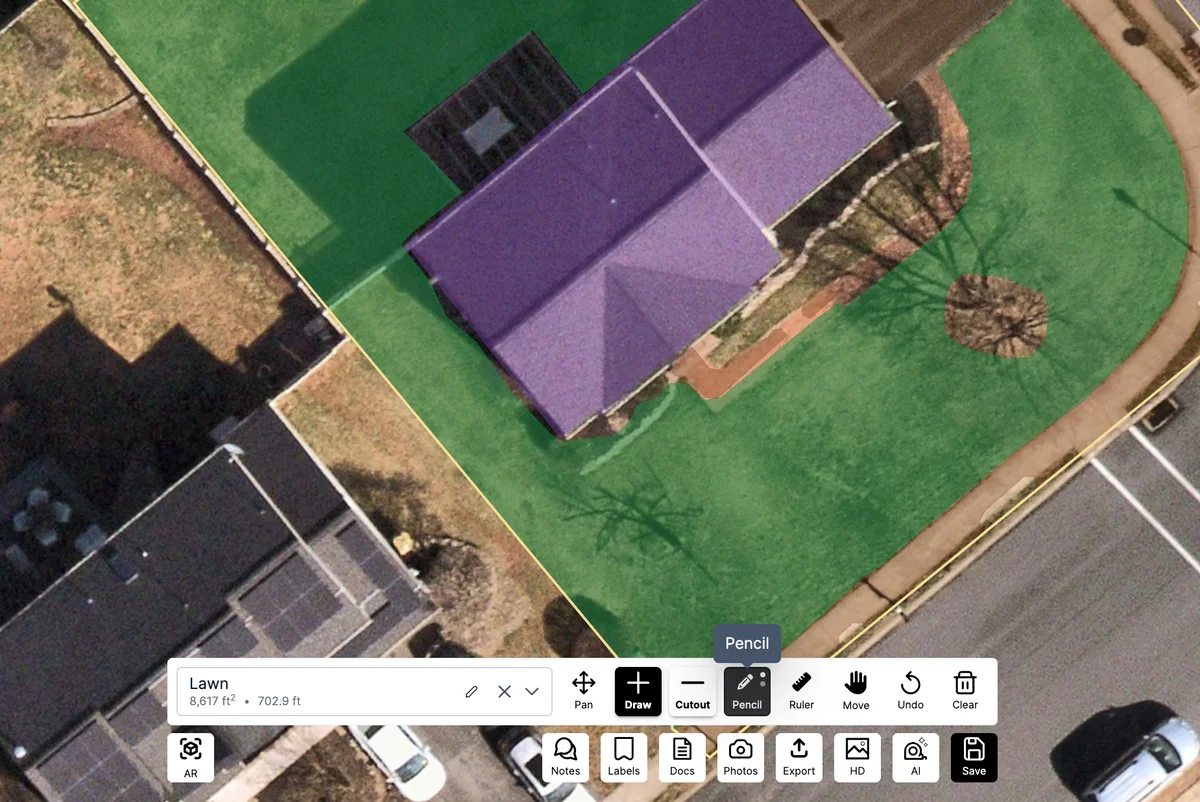
- Click the Pencil icon - Click directly on the pencil icon in the toolbar to activate the tool
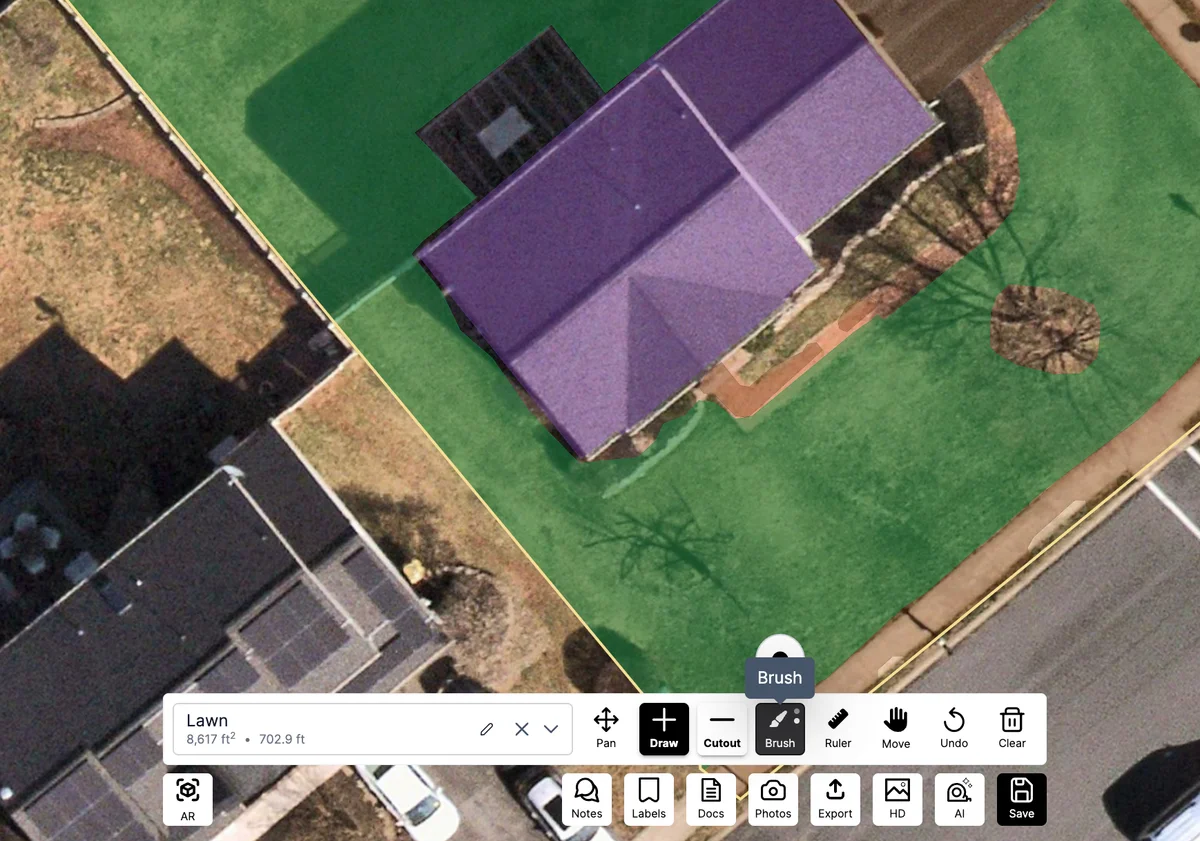
- Toggle between modes - Click the pencil icon again to switch between "Pencil" and "Brush" modes
- Visual confirmation - The tooltip will display either "Pencil" or "Brush" to confirm your current mode
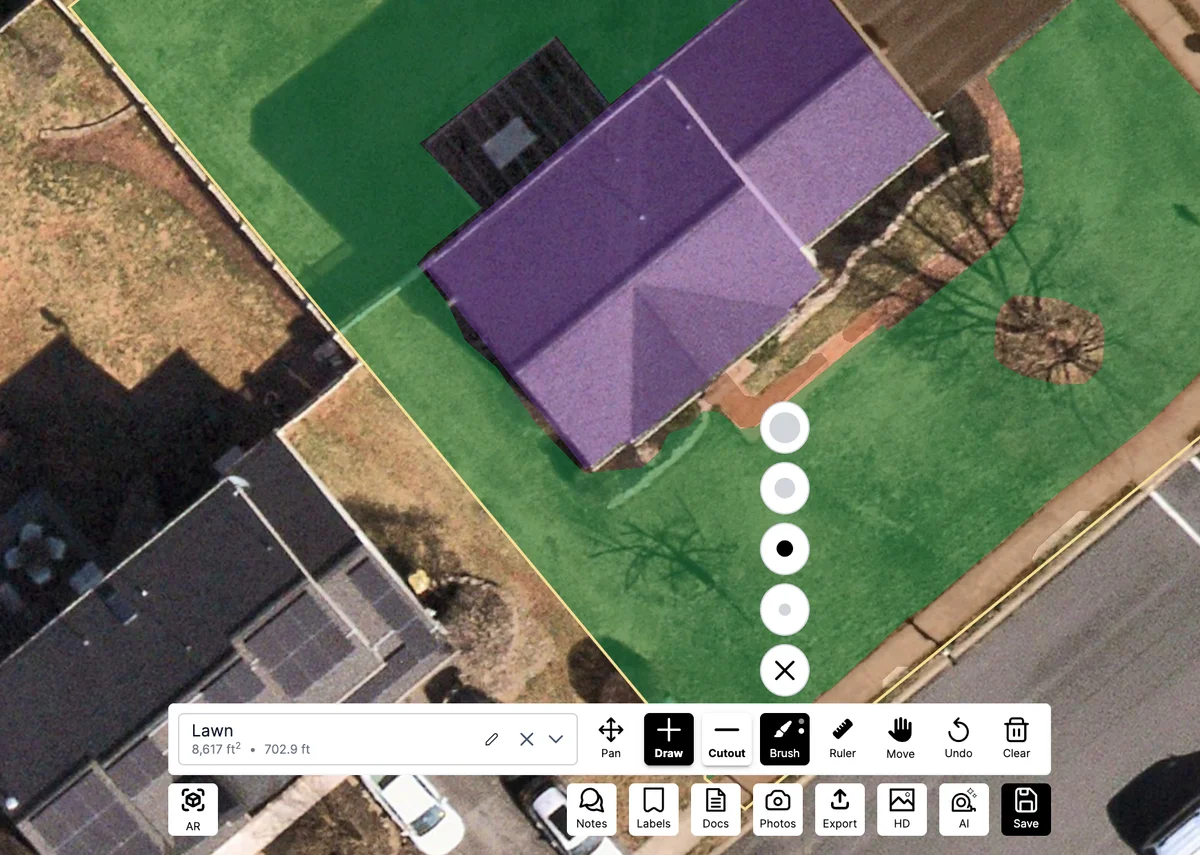
- Access brush sizes - When in brush mode, circular size icons will appear above the map
- Select brush size - Click on any of the circular icons to choose your desired brush size
- Size feedback - The selected size will be indicated by a filled (black) circle, while unselected sizes show as white circles
The interface provides clear visual feedback for both mode selection and brush size, making it easy to customize your drawing experience.
Creating New Measurements
- Select the Pencil tool - Click the Pencil button in the main toolbar
- Select your layer - Choose the appropriate layer for your measurement
- Draw your shape - Click and drag to draw the outline of your area
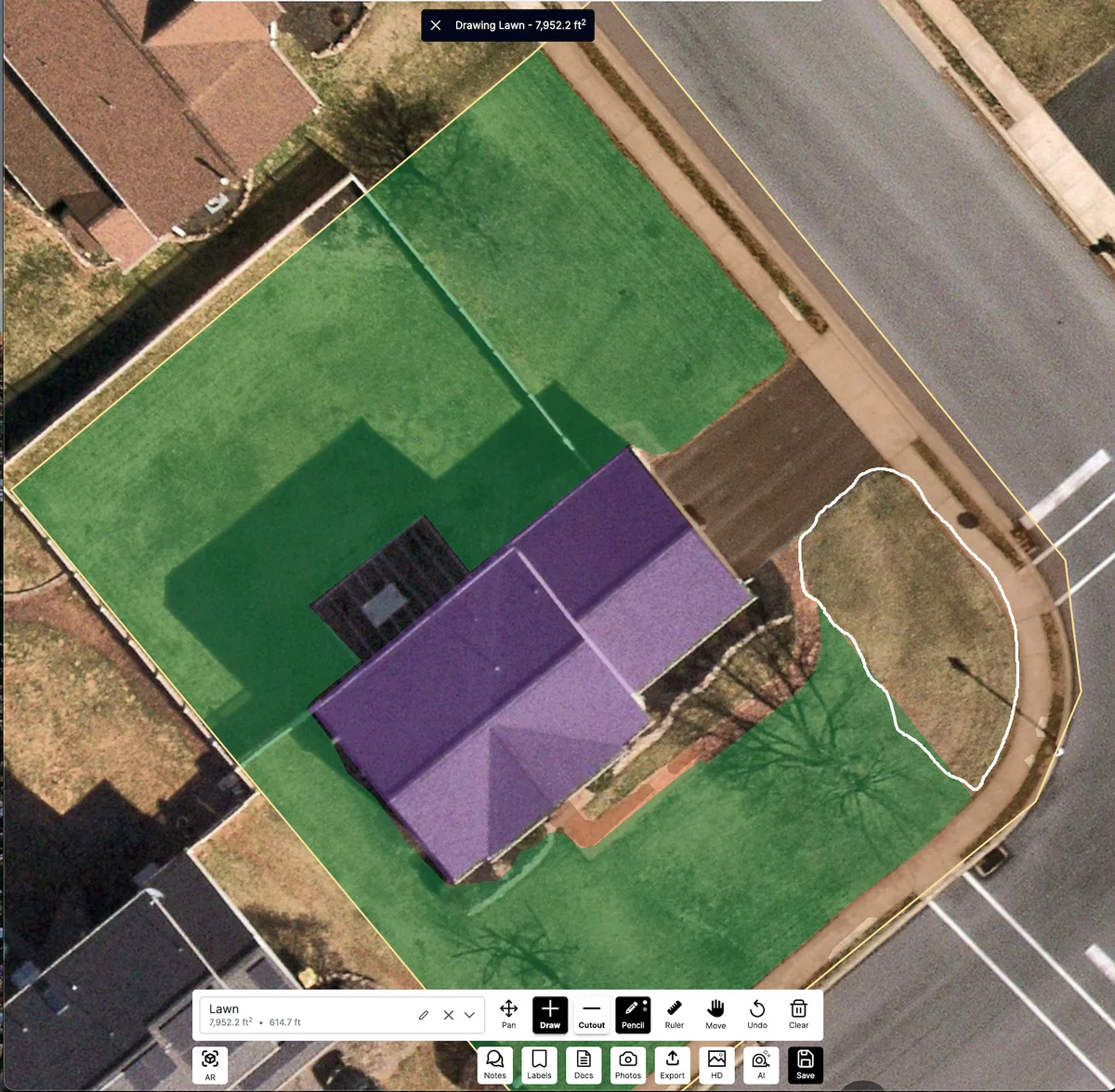
- Close the shape - Connect back to your starting point or double-tap to auto-close
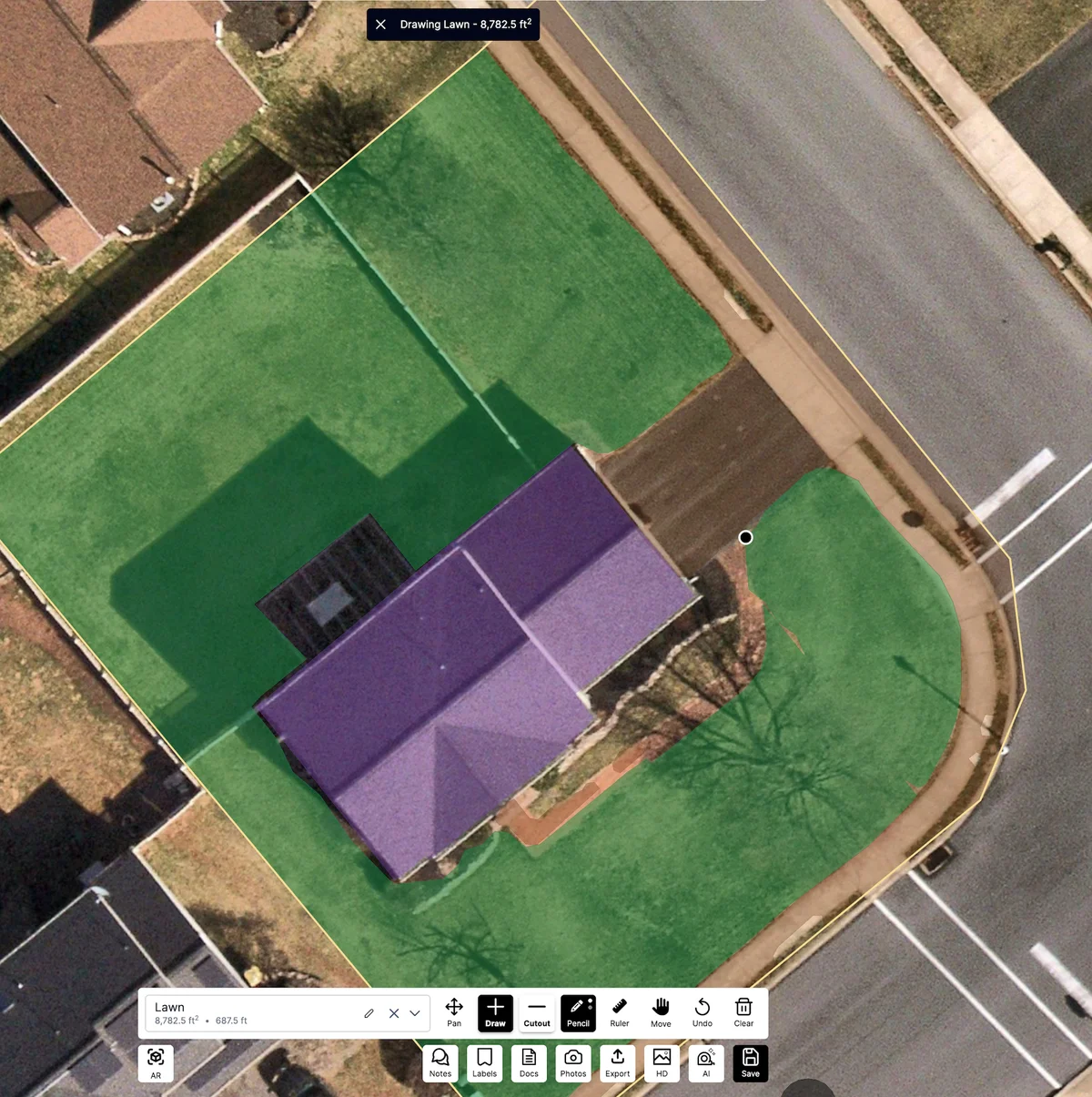
Filling in Missed Areas
The Pencil tool is also excellent for adding to existing measurements when you discover areas that were originally missed or need refinement.
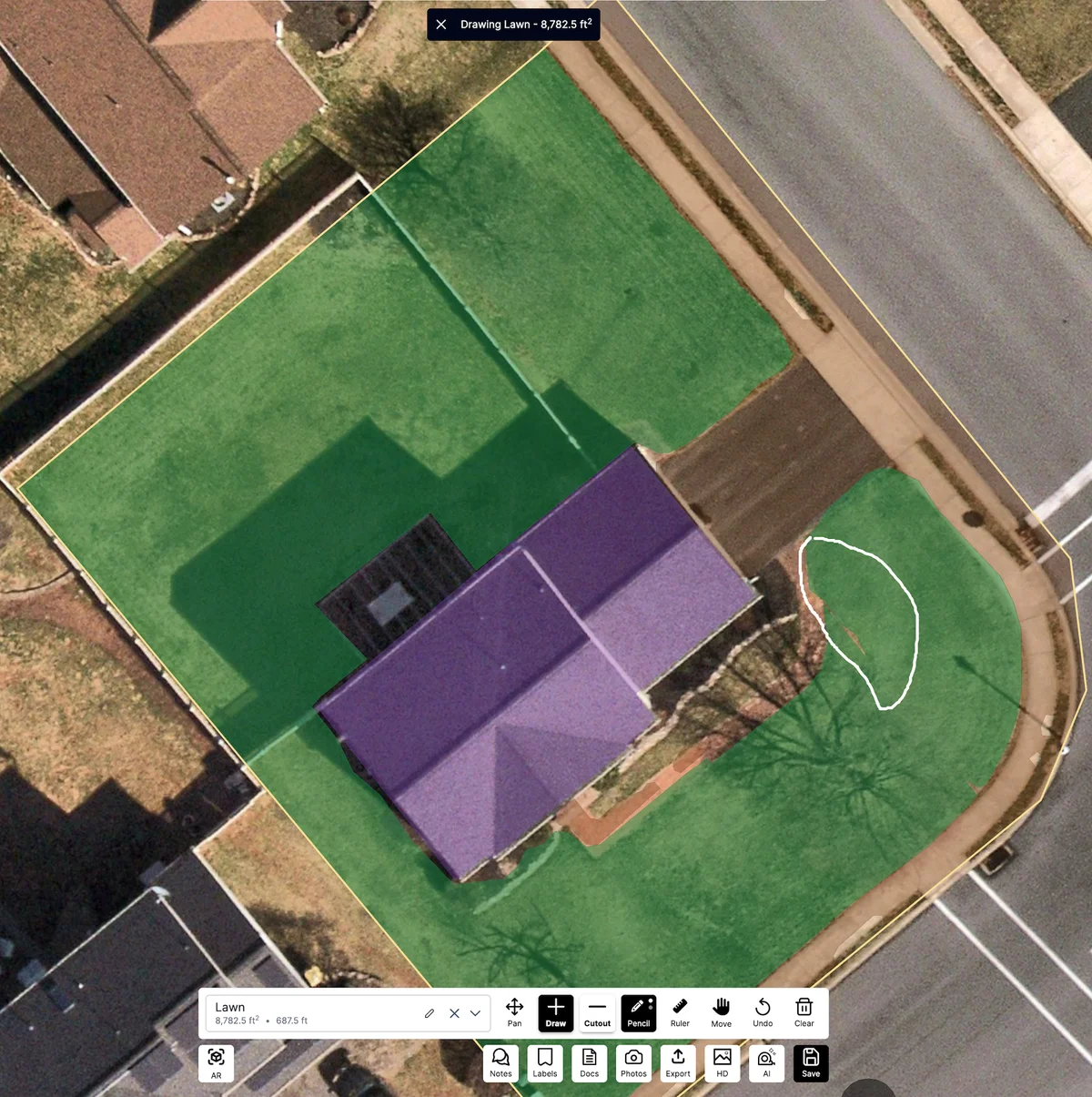
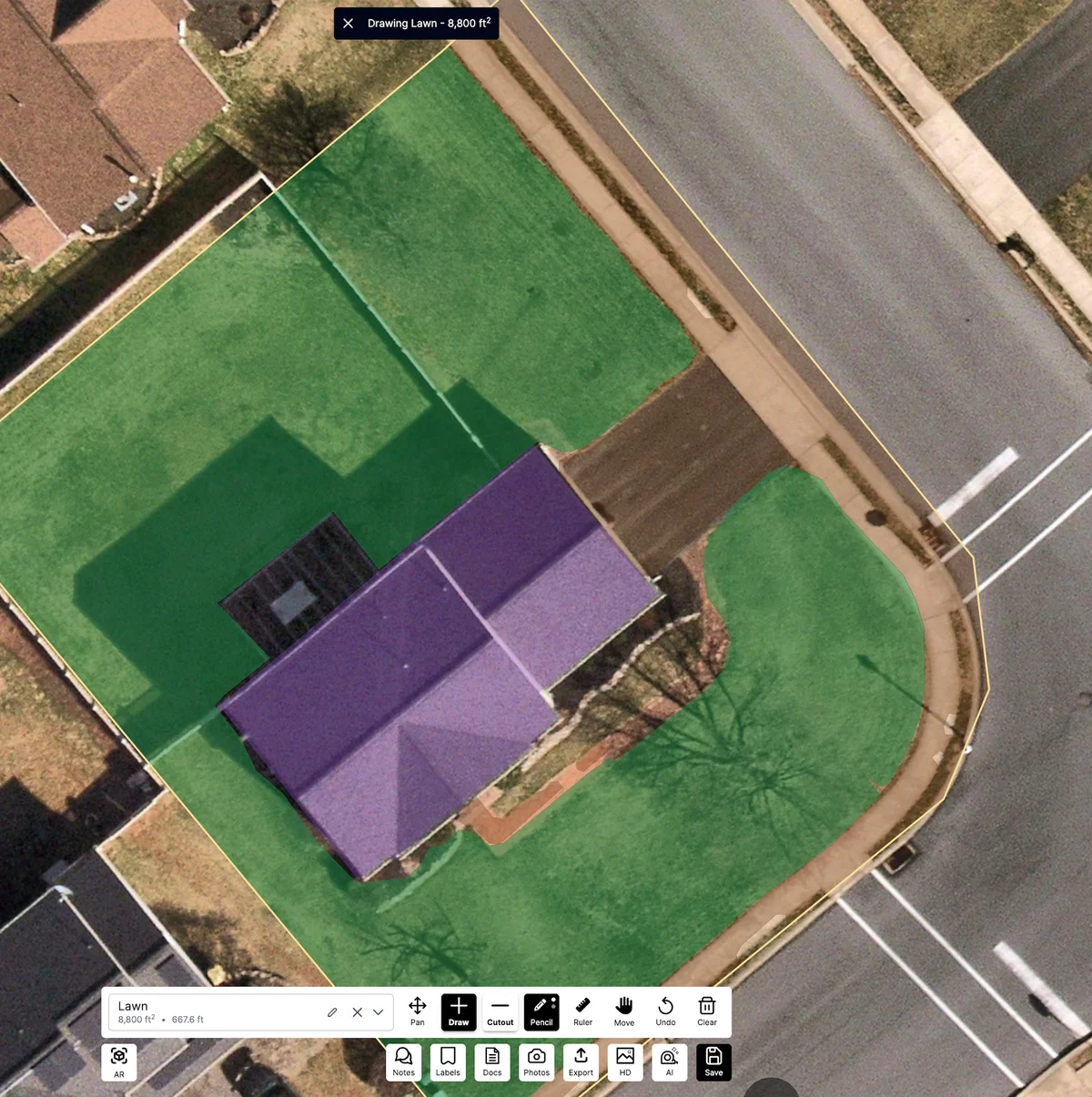
Using the Pencil for Cutouts
- Select your base measurement - Click on the existing area you want to cut from
- Activate the Pencil tool - Switch to Pencil mode from the toolbar
- Draw the cutout area - Trace around the feature to be subtracted
- Complete the cutout - The area will automatically be subtracted from the base measurement
Ideal for cutting out curved features like pools, tree canopies, or irregular obstacles from larger measurements.
For complete information on cutout functionality across all tools, see our Cutout Feature guide.
Key Tips
Use Pencil for: Curved or irregular shapes, natural features, smooth boundaries Use Draw tool for: Straight-edged, geometric shapes, precise corners
Brush sizes: Use smaller sizes for precision, larger sizes for quick coverage
Working with Layers
The Pencil tool integrates with Launchpad's layer system. Your drawings will be assigned to the active layer and colored accordingly.
For complete information on layers, check out our Understanding Layers guide.
The Pencil feature brings natural, intuitive drawing to property measurement. Whether you're tracing organic landscape features or creating smooth cutouts, the Pencil tool provides the flexibility and precision you need for professional results.
Was this article helpful?