Navigation in Launchpad Maps
Video Tutorial
Navigation Tutorial
Learn how to navigate Launchpad's interface and access your property mapping tools.
Overview
Launchpad is designed for fast, intuitive access to all your property mapping tools—whether you're on-site or working remotely. This article covers how to begin using the application, navigate different views, and access your saved property data.
The "What's Next" Screen
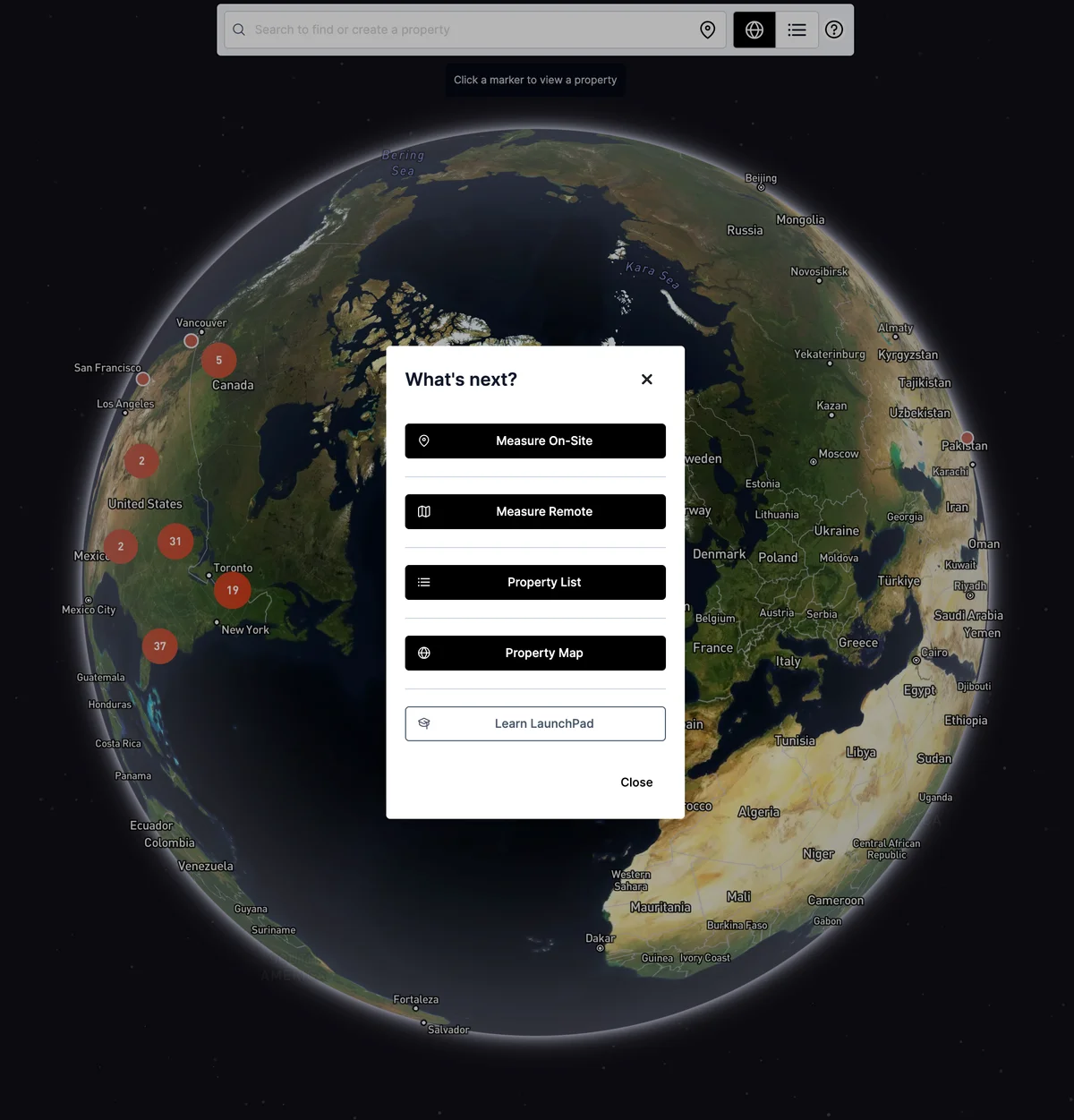
When you first open Launchpad, you're greeted with the "What's Next" screen—a centralized hub to kick off your work.
From this screen, you can:
Measure On Site Uses your device's GPS location to pinpoint your current position on the map. This is ideal for fieldwork or when quoting properties in person.
Measure Remote Allows you to manually enter an address or location. The map will then zoom into that area for remote measuring and quoting.
Property List Opens a searchable and scrollable list of all properties in your Launchpad account, including previously measured jobs or imported data.
Map View Shortcut Click the embedded map preview to jump directly into the interactive map mode, where you can explore and manage properties visually.
Tip: At any time, click the question mark icon in the top bar to return to the "What's Next" screen.
Navigating the Map View
The Map View offers a full, interactive layout of all properties in your account.
In the Map View:
- Click any property to open it and begin drawing, measuring, or editing
- Pan and zoom to explore the surrounding area
- Use this view to quickly locate nearby properties or jump between jobs
This visual overview is ideal for:
- Switching between jobs in the same neighborhood
- Checking layouts and distances between client sites
- Verifying GPS positioning during on-site visits
Accessing the Property List
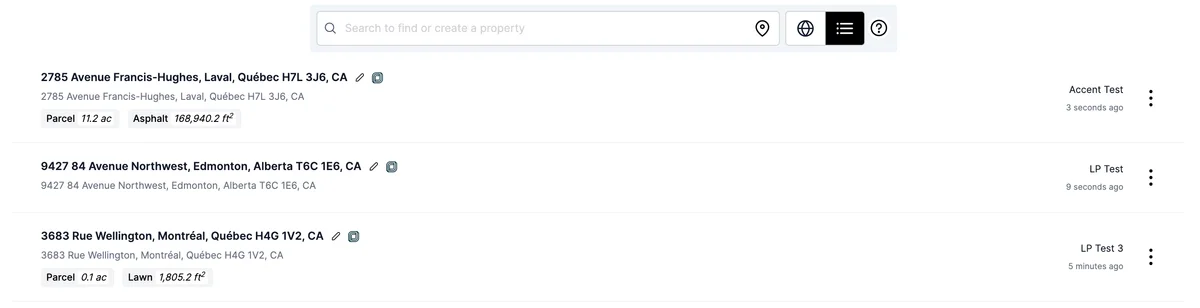
The Property List provides a structured overview of all stored projects.
Key Features:
- Search by name or address to find properties quickly
- See high-level information such as:
- Property name
- Date created
- Measurement status
- Click any property to open it in Map View for editing
Use this when:
- Reviewing your quoting history
- Following up on past client work
- Managing bulk property data
Summary
Whether you're measuring a lawn from the field or managing multiple properties from the office, Launchpad's "What's Next" screen, Map View, and Property List make it easy to get started and stay organized. These tools are designed to fit naturally into your workflow—on-site, remote, or during review.
Was this article helpful?