Measuring a Property Remotely in Launchpad
Video Tutorial
Desktop Tutorial: Advanced Property Measurements
Learn how to create detailed property measurements on your computer. Master the tools for precise area and distance calculations.
Overview
This guide walks you through the full workflow for using the "Measure Remote" feature in Launchpad to locate a property, adjust its boundary, enable AI layers, and complete measurements—all without being on-site.
Step 1: Open the Measure Remote Tool
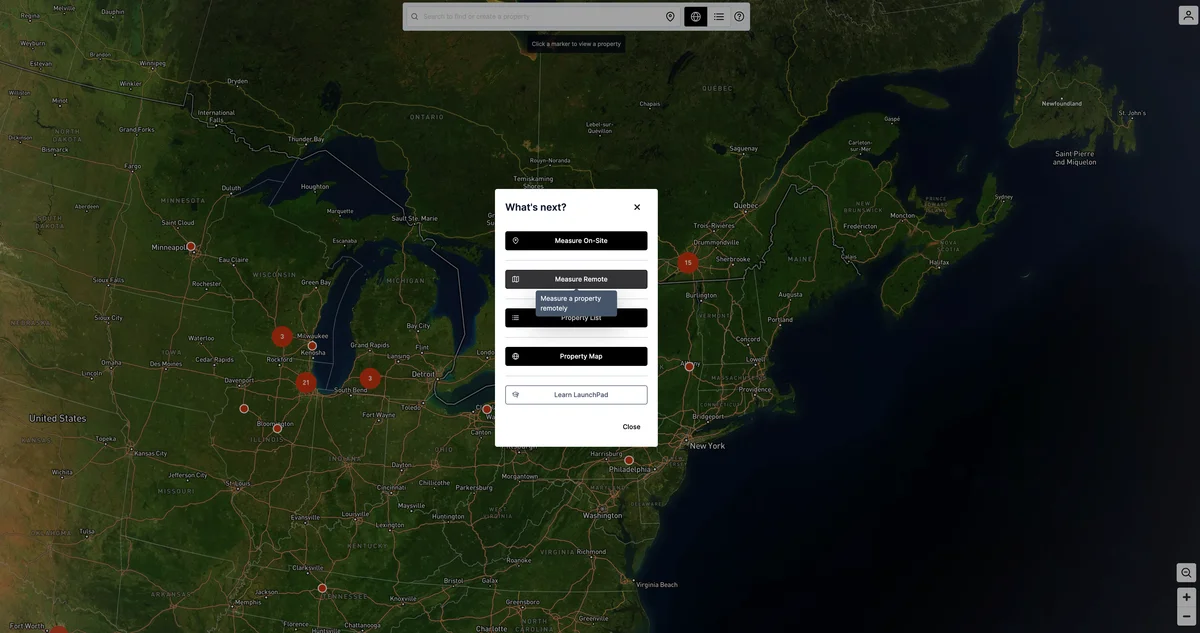
From the Launchpad dashboard, select the option labeled Measure Remote in the "What's Next?" modal.
- A search bar will appear at the top of the screen
- Enter the property address into the search bar and press Enter
- Launchpad will automatically locate and center the map on that parcel
Step 2: Confirm or Adjust the Parcel Boundary
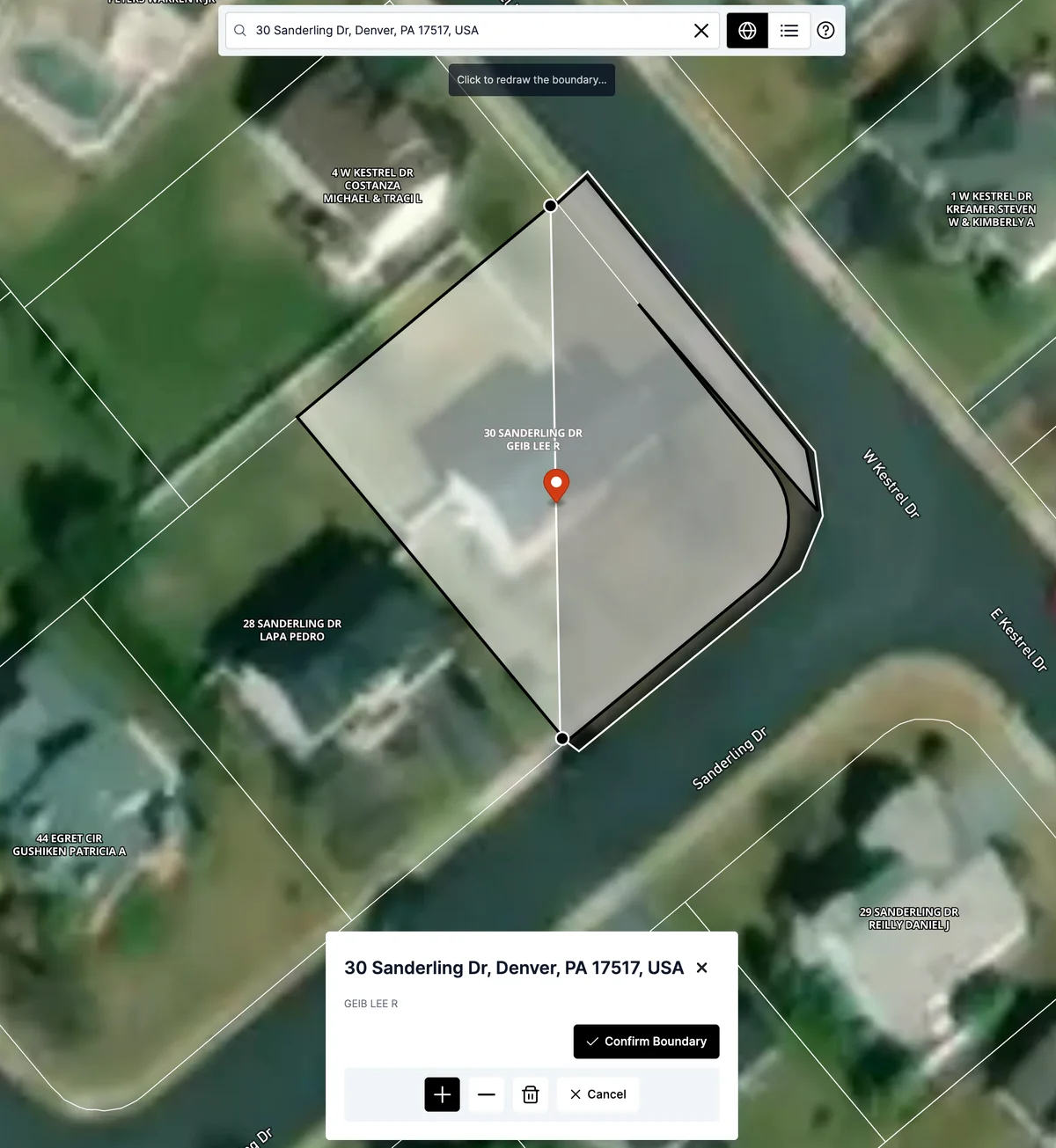
After Launchpad loads the selected property, it will outline the parcel boundary in black.
- Review the shape to ensure it matches the actual property boundary
- If adjustments are needed, click "Edit Boundary" to manually adjust the vertices and redraw the shape
- Once the boundary is accurate, click "Confirm Boundary"
Step 3: Configure Default AI & Imagery Settings
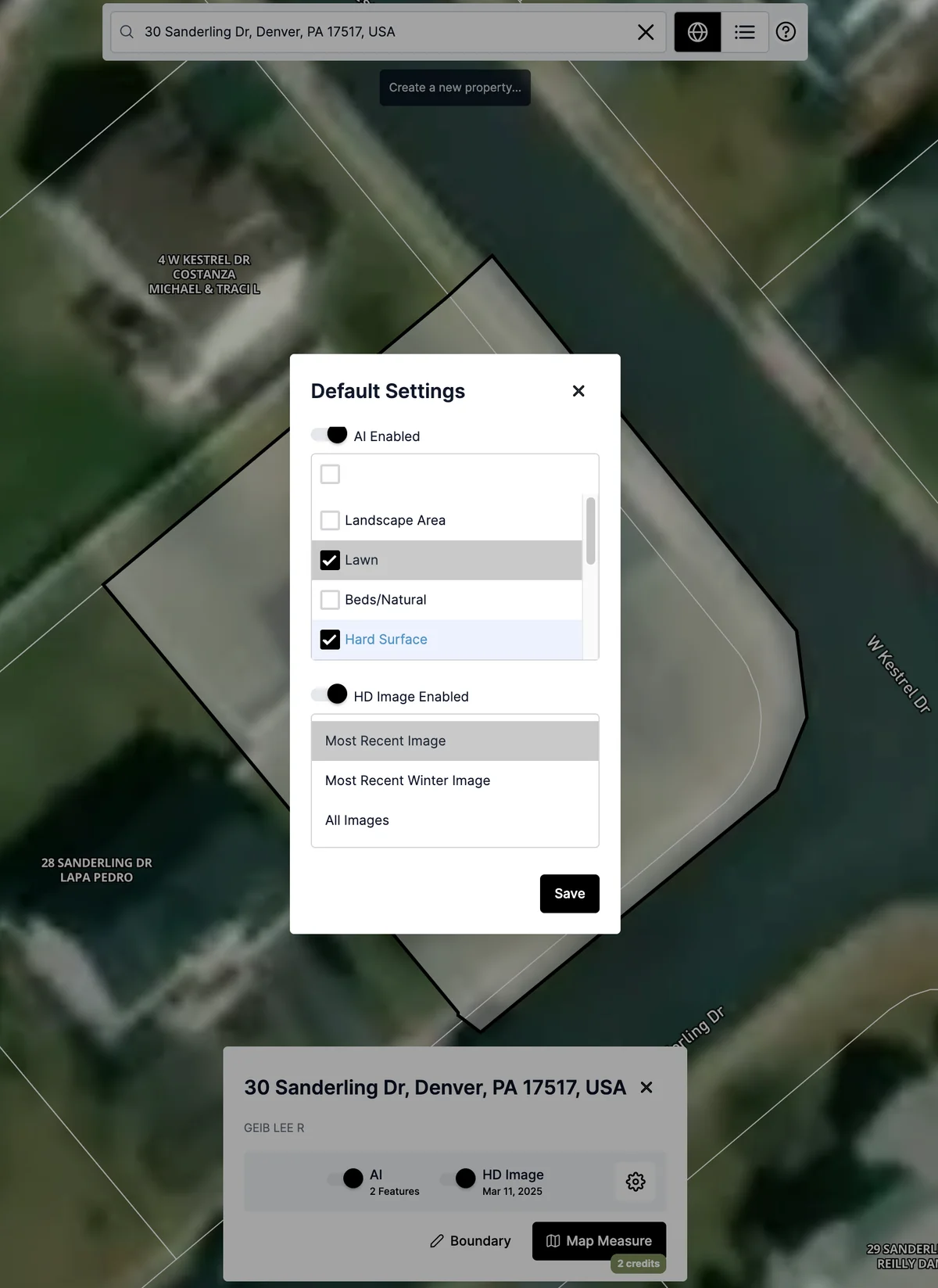
Before generating measurements, you'll be prompted with the Default Settings panel.
AI Settings
- Toggle AI Enabled if you want the system to auto-detect surface types
- Choose which layers to include, such as:
- Landscape Area
- Lawn
- Beds/Natural
- Hard Surface
Imagery Settings
- Toggle HD Image Enabled if high-resolution imagery is preferred
- Choose the imagery set:
- Most Recent Image
- Most Recent Winter Image
- All Images
Click Save to apply your settings.
These settings determine which layers Launchpad will calculate during the AI processing.
Step 4: Confirm Credit Use
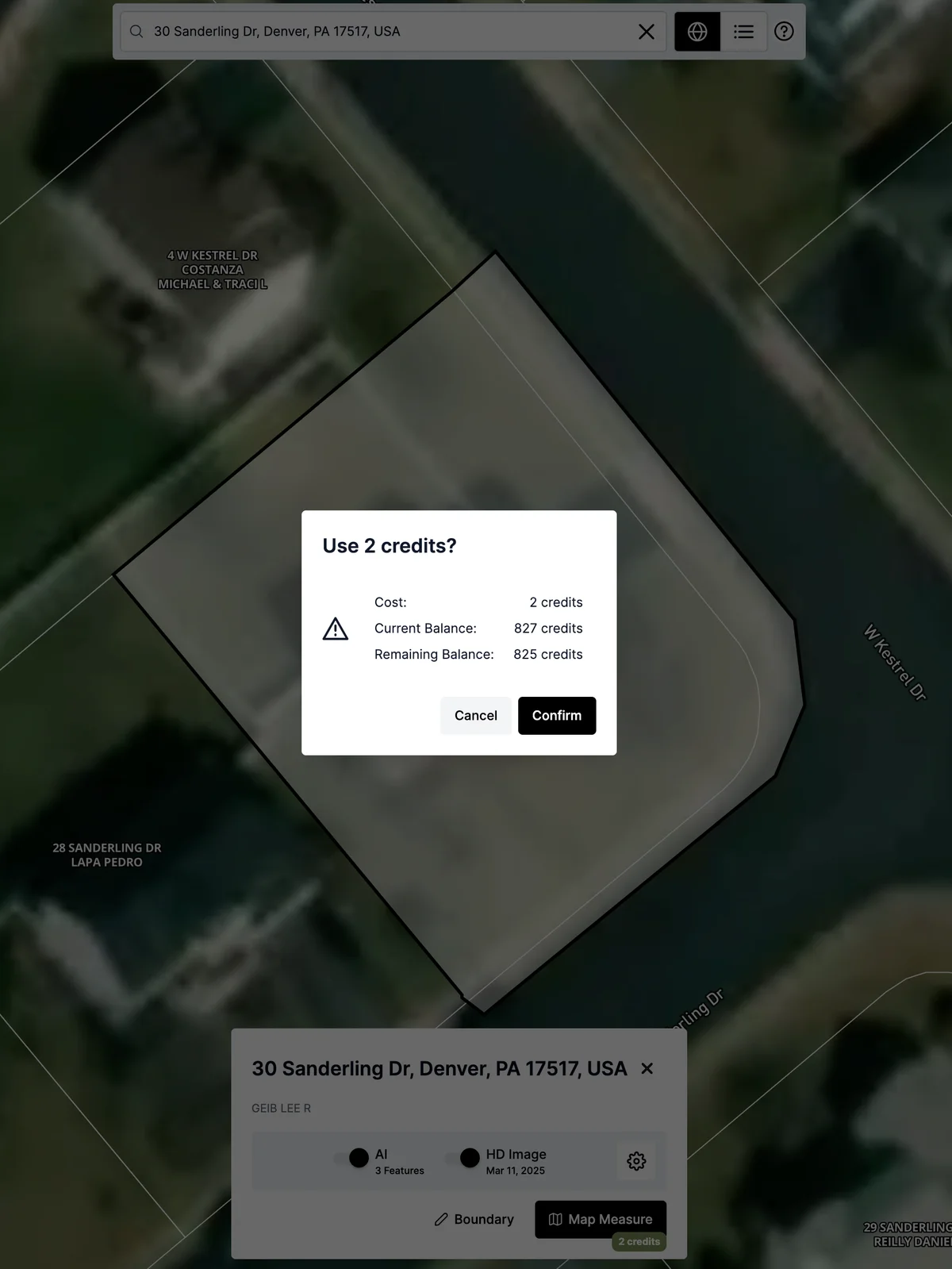
If AI and/or HD imagery are enabled, Launchpad will display a credit confirmation modal.
- The modal will show the total cost, your current credit balance, and remaining balance after confirming
- Click Confirm to proceed
Note: AI is billed per acre, and each imagery option has an associated cost.
Step 5: Begin Measurement
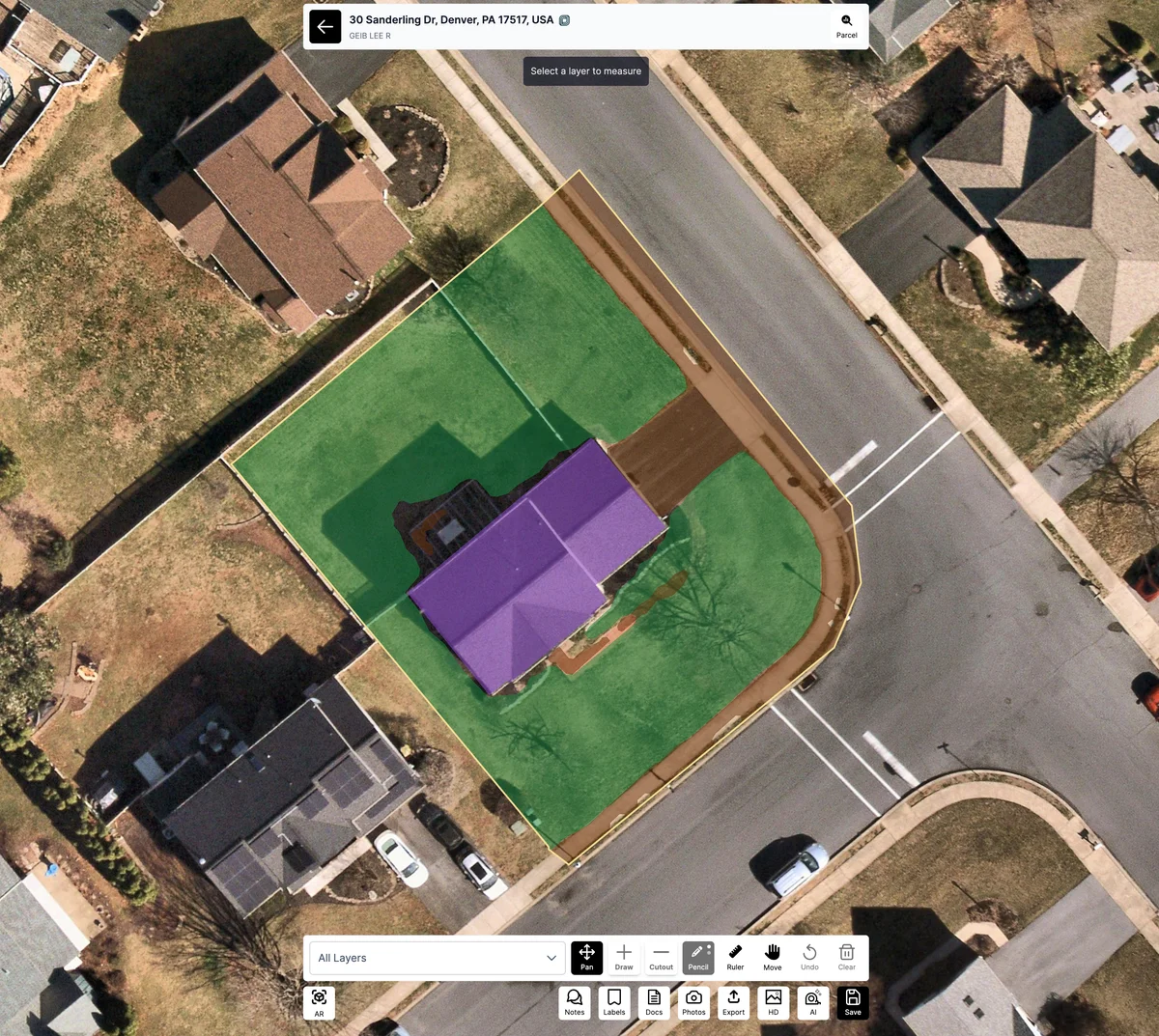
Once the setup is complete, the system will process your selections and display:
- Color-coded layers based on AI detection (e.g., lawn, hard surface, buildings)
- Measurement tools across the bottom toolbar
You can:
- Add or adjust measurements using Draw or Cutout tools
- View layer-specific totals (e.g., square footage of lawn)
- Use tools like Pencil, Undo, Labels, and Photos to annotate the property
Step 6: Finalize and Save
After completing your edits or confirming AI accuracy, click Save in the bottom-right corner.
Your measurement is now stored in the project and visible in your Property List.
Summary
The Measure Remote workflow in Launchpad allows users to quote and assess properties from anywhere. With built-in AI segmentation, high-resolution imagery, and easy editing tools, it streamlines the remote measurement process for both internal teams and client deliverables.
For more help, reach out to support or access in-app guidance through the help icon.
Was this article helpful?