How to Change Measurement Units for Layers
Video Tutorial
Changing Measurement Units
Learn how to update measurement units globally or for specific properties and layers.
Overview
This article explains how to change the measurement units used for layers. You can update units globally using measurement preferences or override them for a specific property or layer.
When to Use This
- You want a layer (such as Lawn) to display measurements in a different unit (for example, acres instead of square feet)
- You need a one-off unit change for a specific property
- You want to standardize default measurement units across all properties
Change Measurement Units Globally (Default Settings)
- Navigate to Measurement Preferences.
- Locate the layer you want to update.
- Click the unit of measurement to the right of the layer.
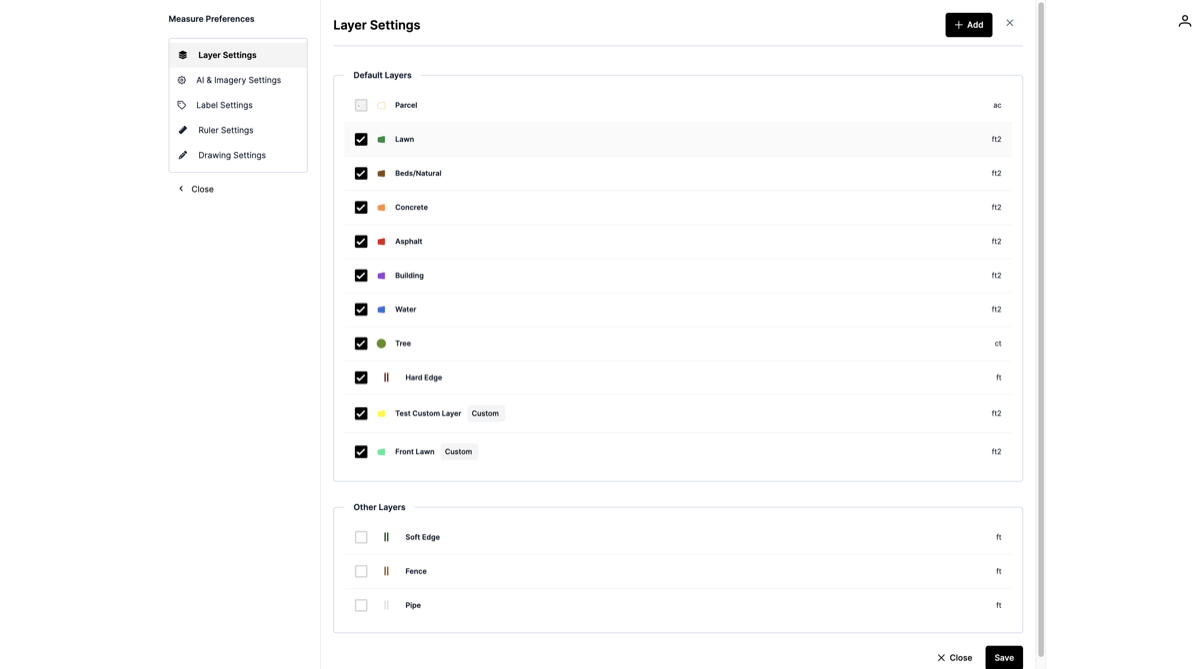
- Select the desired measurement unit (for example, change Lawn from square feet to acreage).
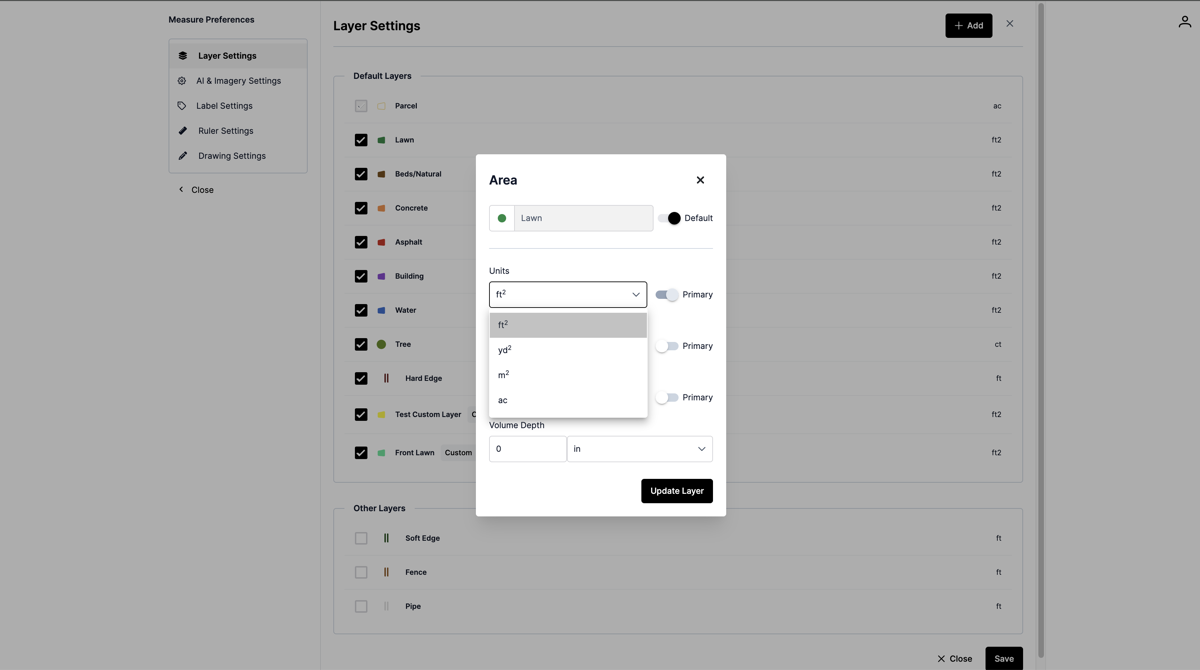
- Save your changes.
Once updated, all new measurements for that layer will use the selected unit by default.
Change Measurement Units for a Specific Property or Layer
If you only want to change the unit for a single property:
- Open the property.
- Select the layer you want to modify.
- Click Edit.
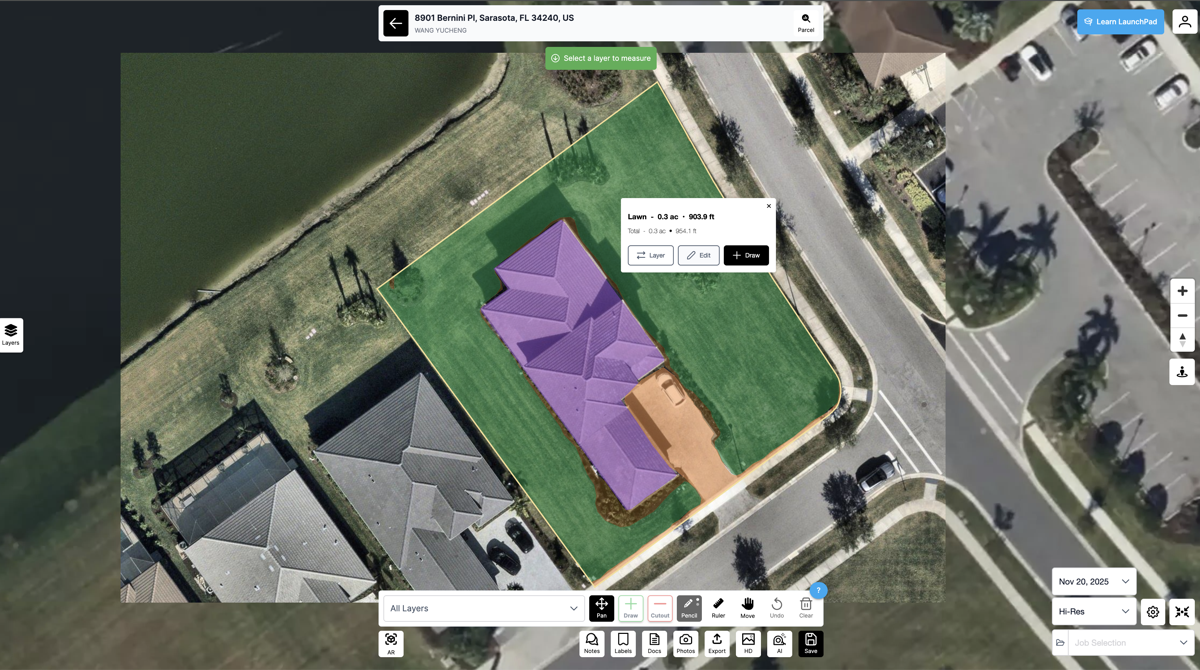
- Update the measurement unit.
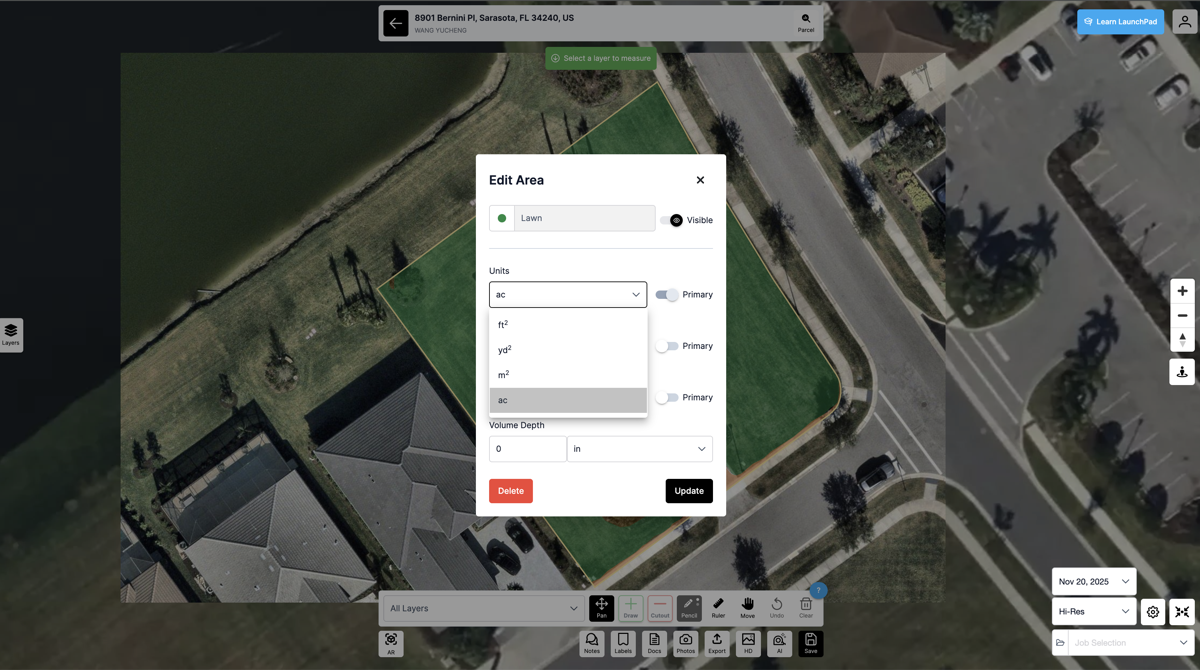
- Click Update to save.
This change applies only to the selected property and does not affect global defaults.
Example
- Lawn layer default unit set to Acreage
- Measurements now display in acres when viewing or hovering over the lawn area
- Units can still be overridden per property if needed
Summary
- Use Measurement Preferences to set default units for layers
- Use Layer Edit on a property to override measurement units
- Changes can be applied globally or per property depending on your needs
For additional help with measurements, review related articles in Launchpad or contact support.
Was this article helpful?