LaunchPad Map - On Device
Video Tutorial
Mobile Tutorial: On-Device Measurement
Learn how to collect measurements using your mobile device in the field.
Overview
LaunchPad On-Device allows you to collect accurate measurements in real-time using your mobile device. This guide walks you through the full process—from launching the tool to reviewing your final measurements.
Getting Started
Step 1: Choose Your Measurement Mode
From the main screen, select Measure On-Site from the "What's next?" menu.
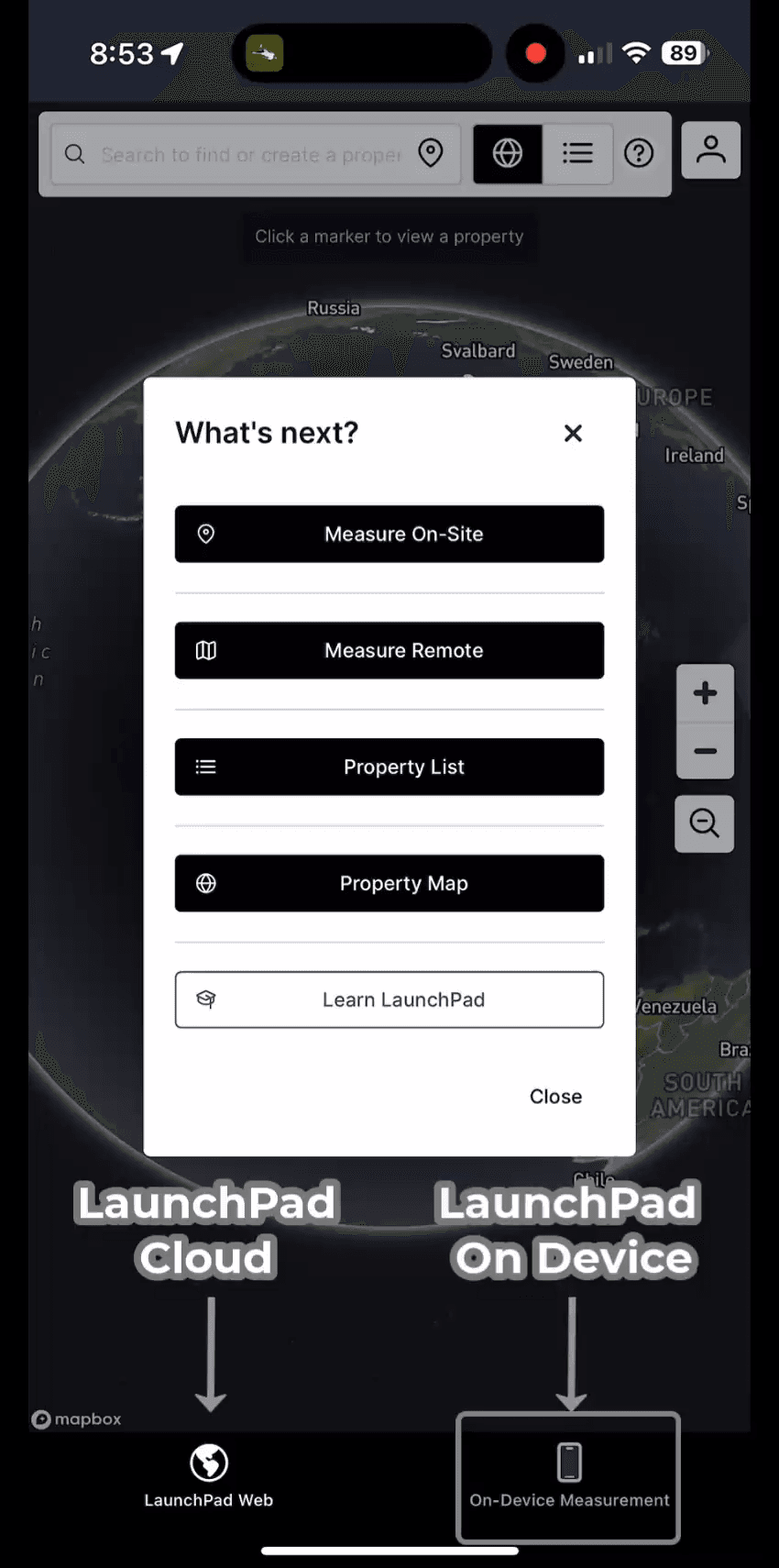
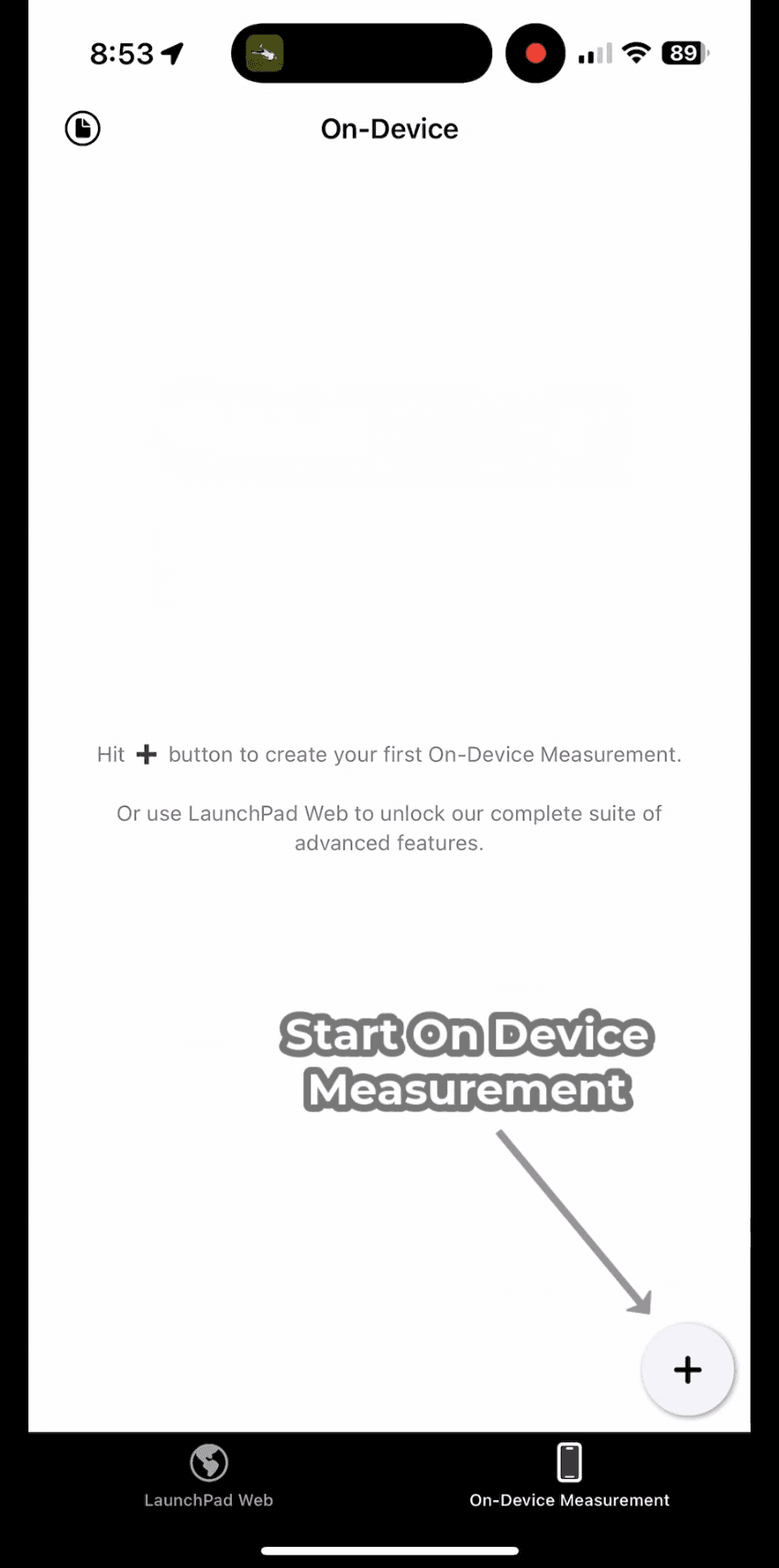
Step 2: Start a New On-Device Measurement
Tap the "+" button at the bottom right to create your first On-Device Measurement.
Set Up Your Layers
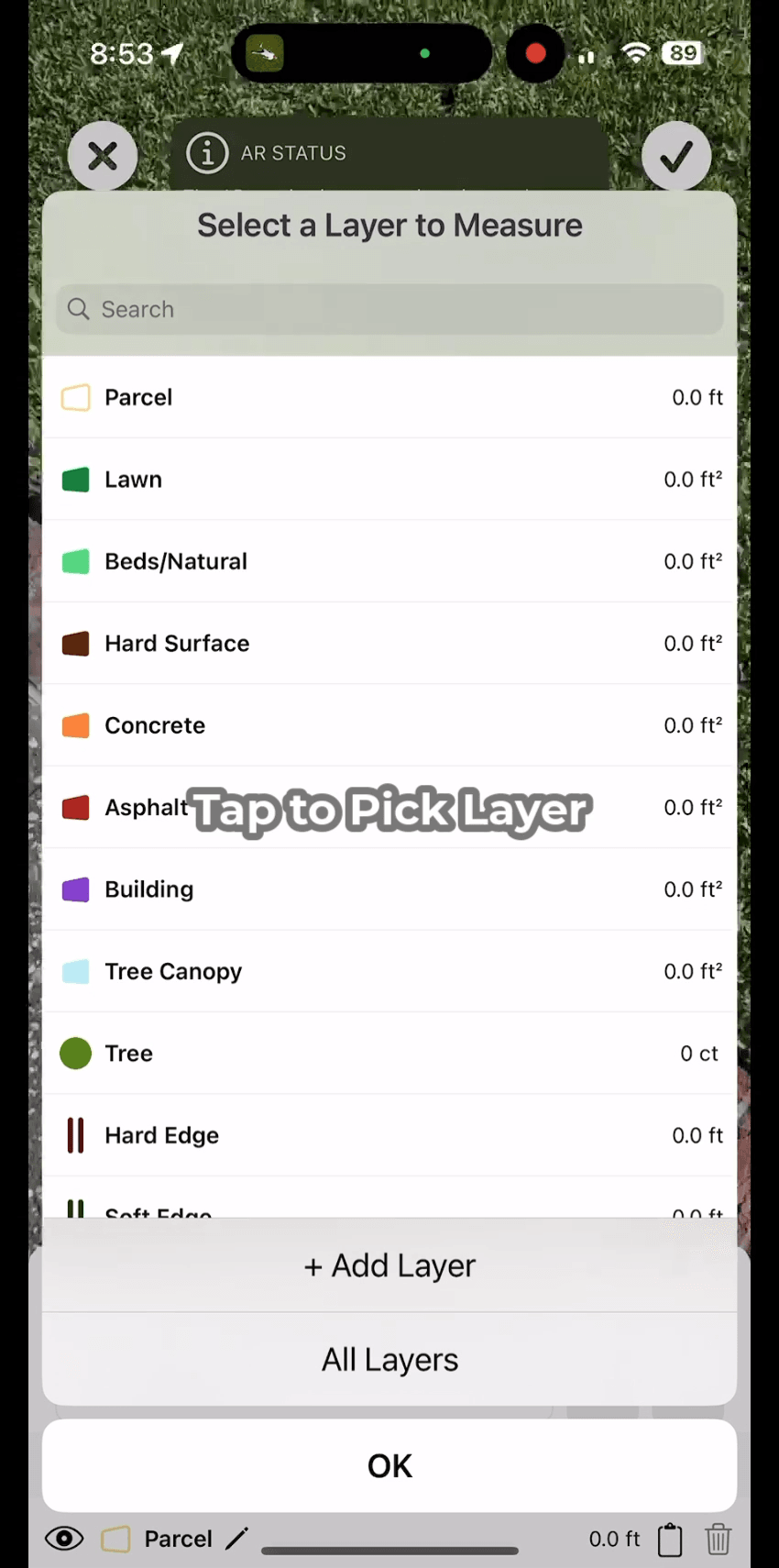
Step 3: Choose or Create a Layer
Select an existing layer (e.g., Lawn, Hard Surface) or tap + Add Layer to create a custom one.
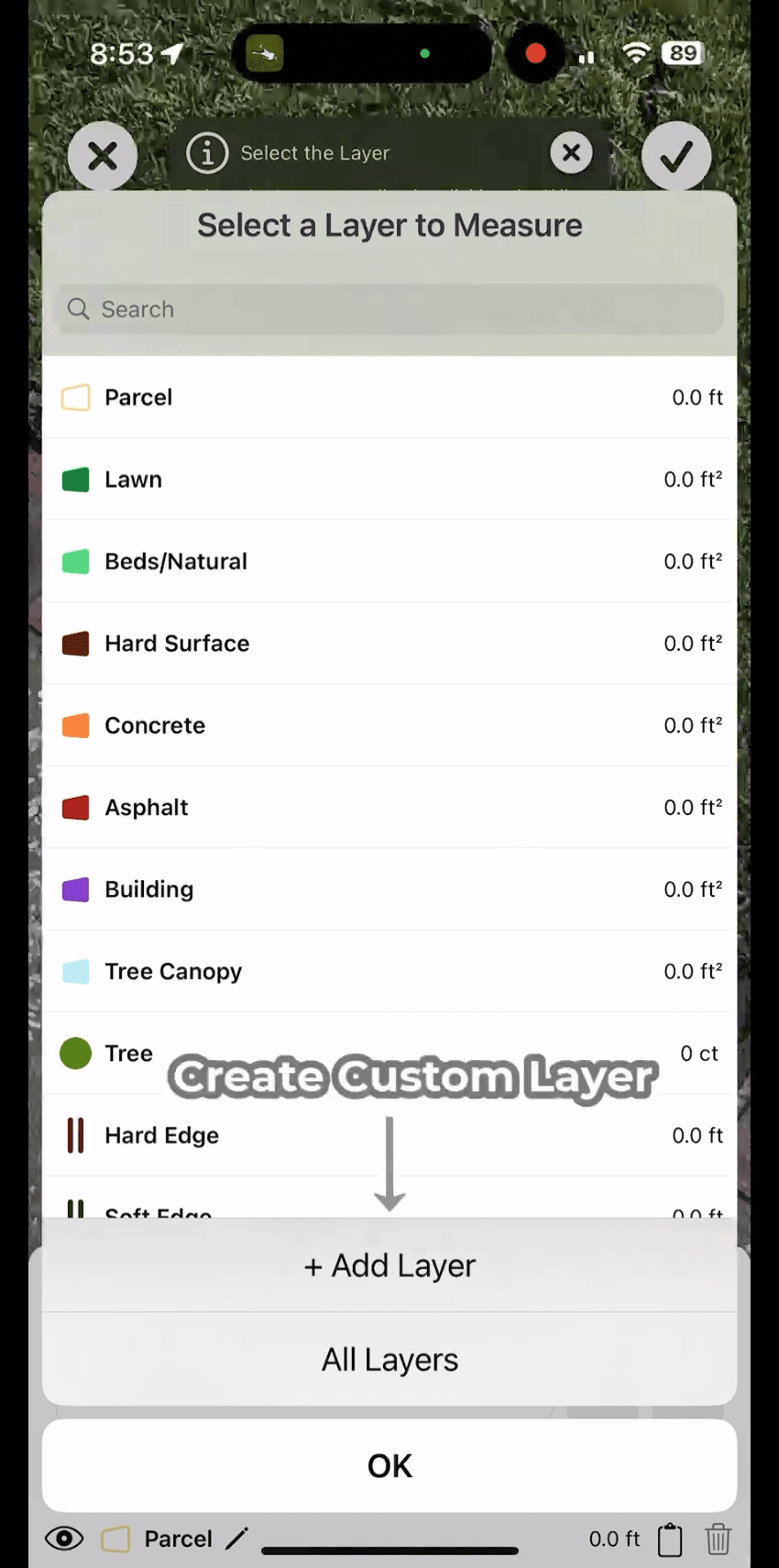
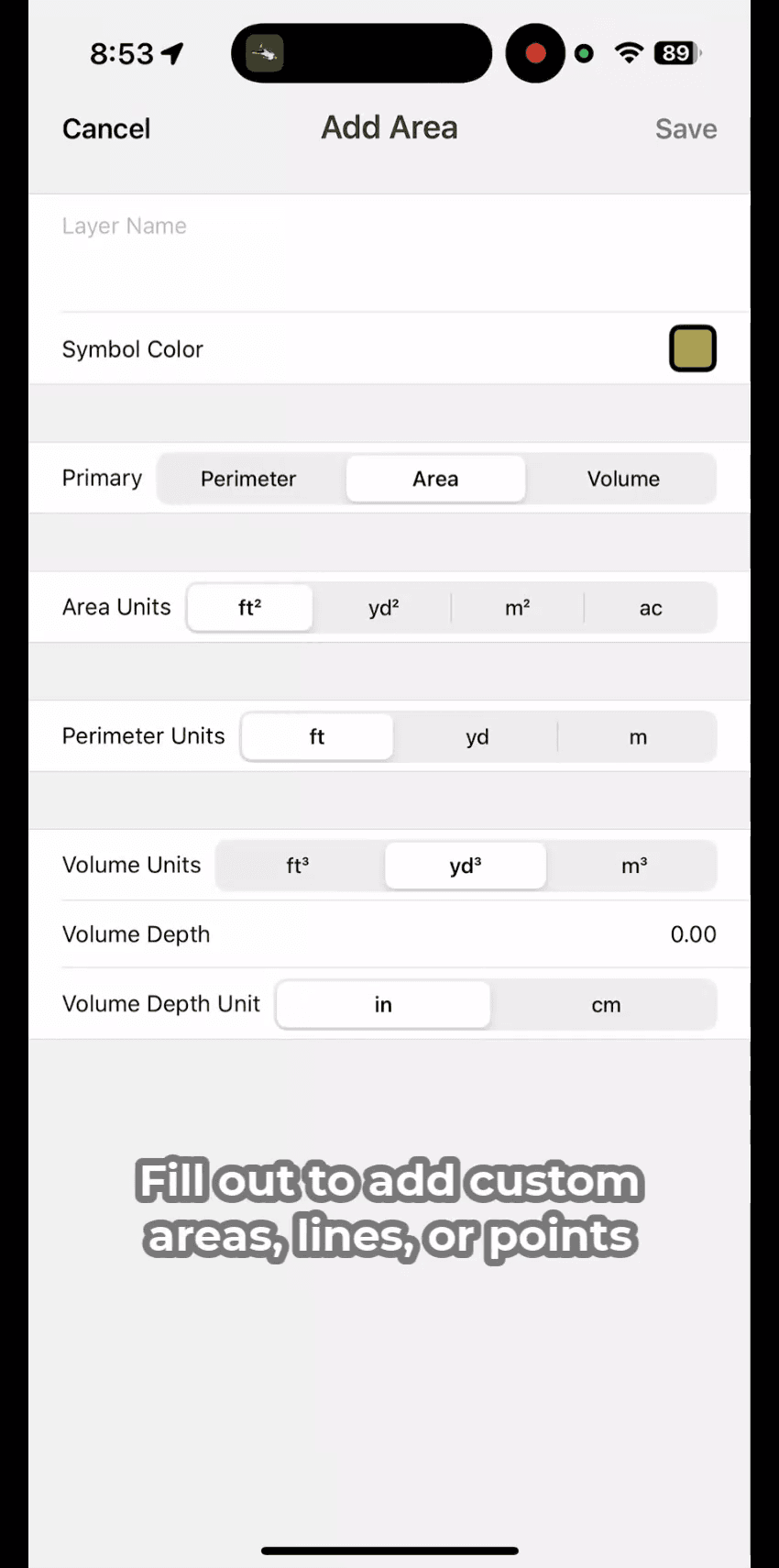
For custom layers, fill out the form including:
- Name
- Symbol color
- Measurement type (Area, Line, Volume)
- Area, perimeter, and volume units
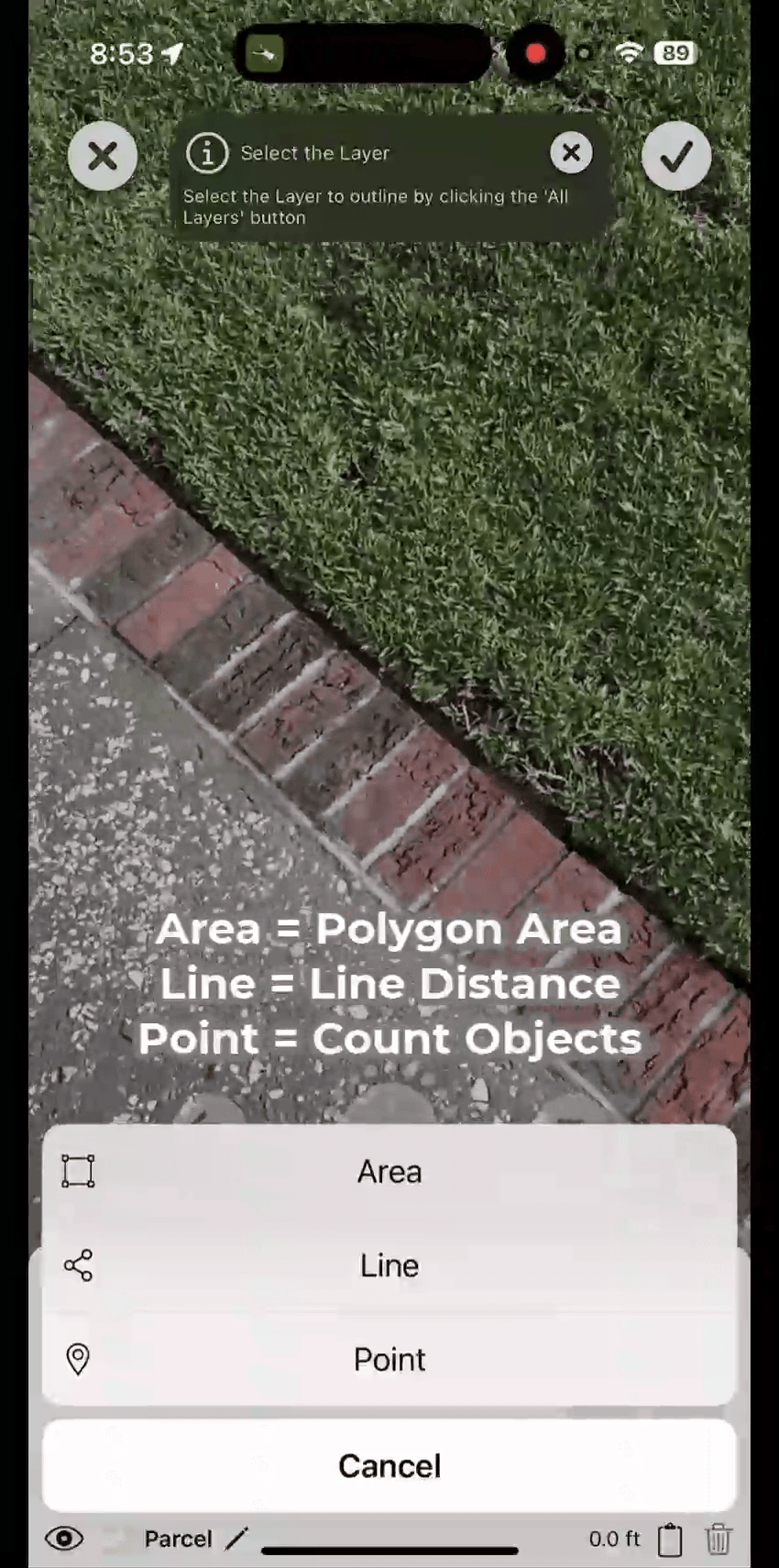
Measuring an Area
Step 5: Begin Measuring
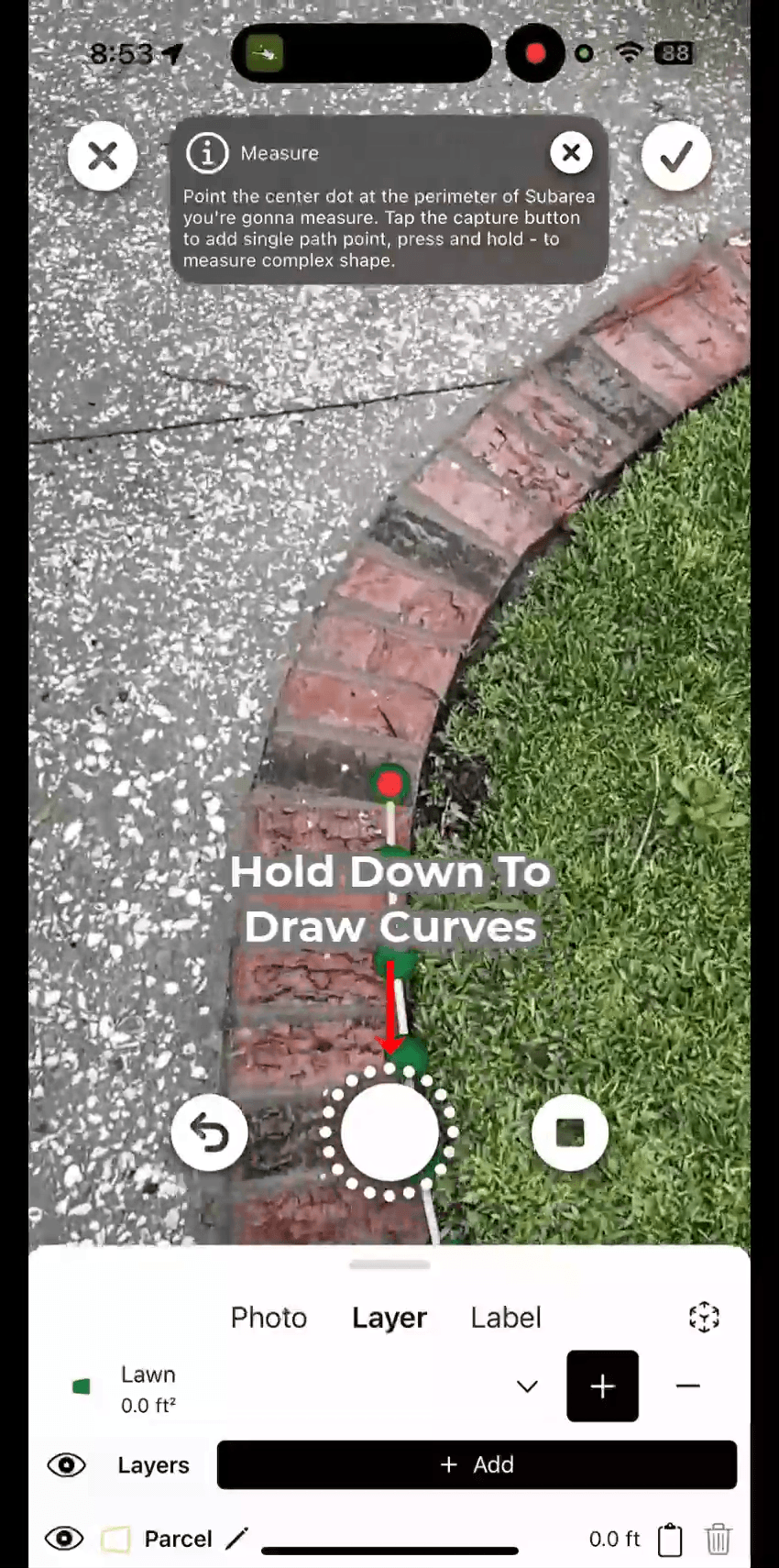
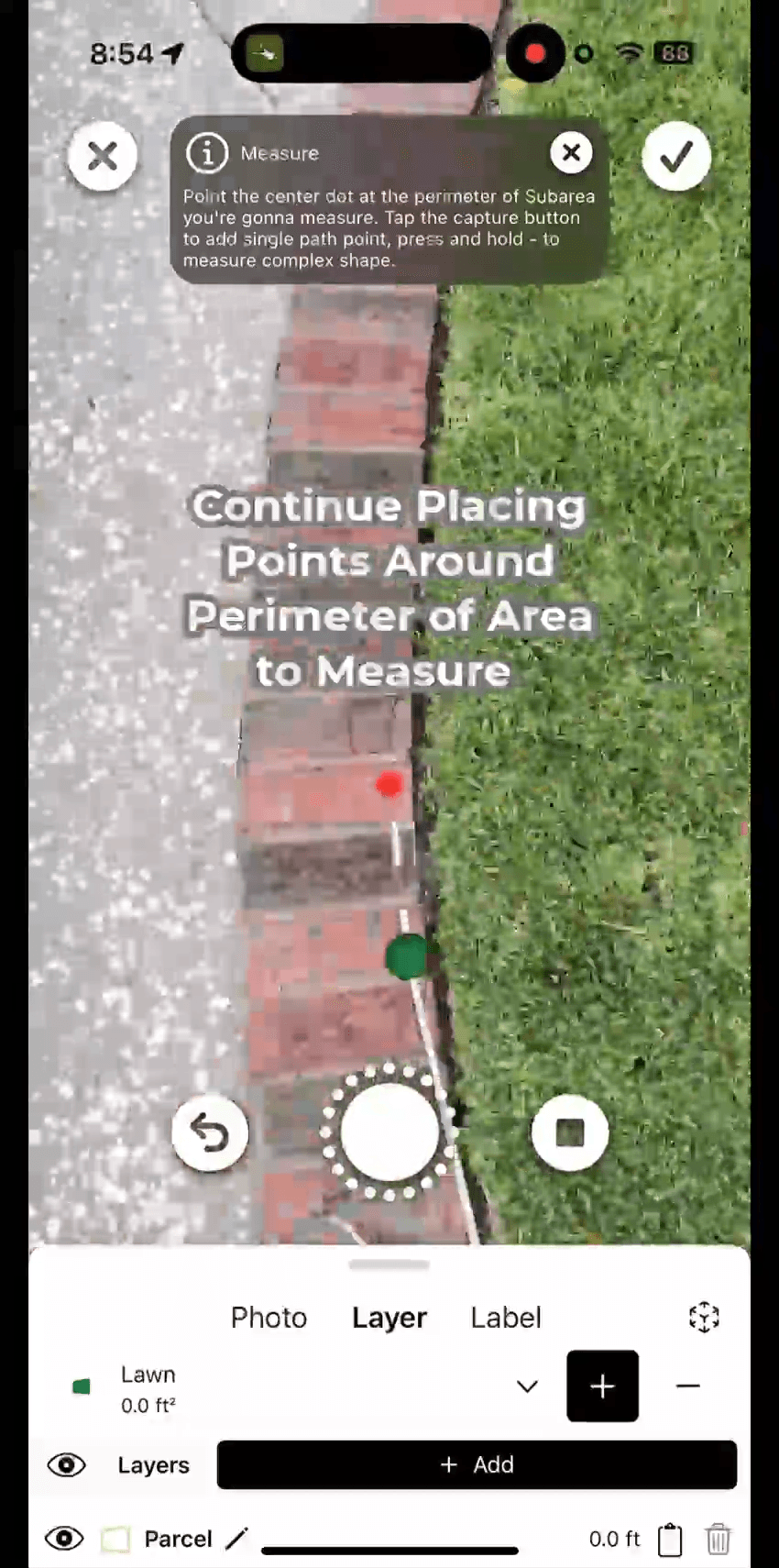
After selecting your layer, point the center dot where you want to start and tap the capture button to place a point.
- Tap to add a single point
- Press & hold to draw a curved shape
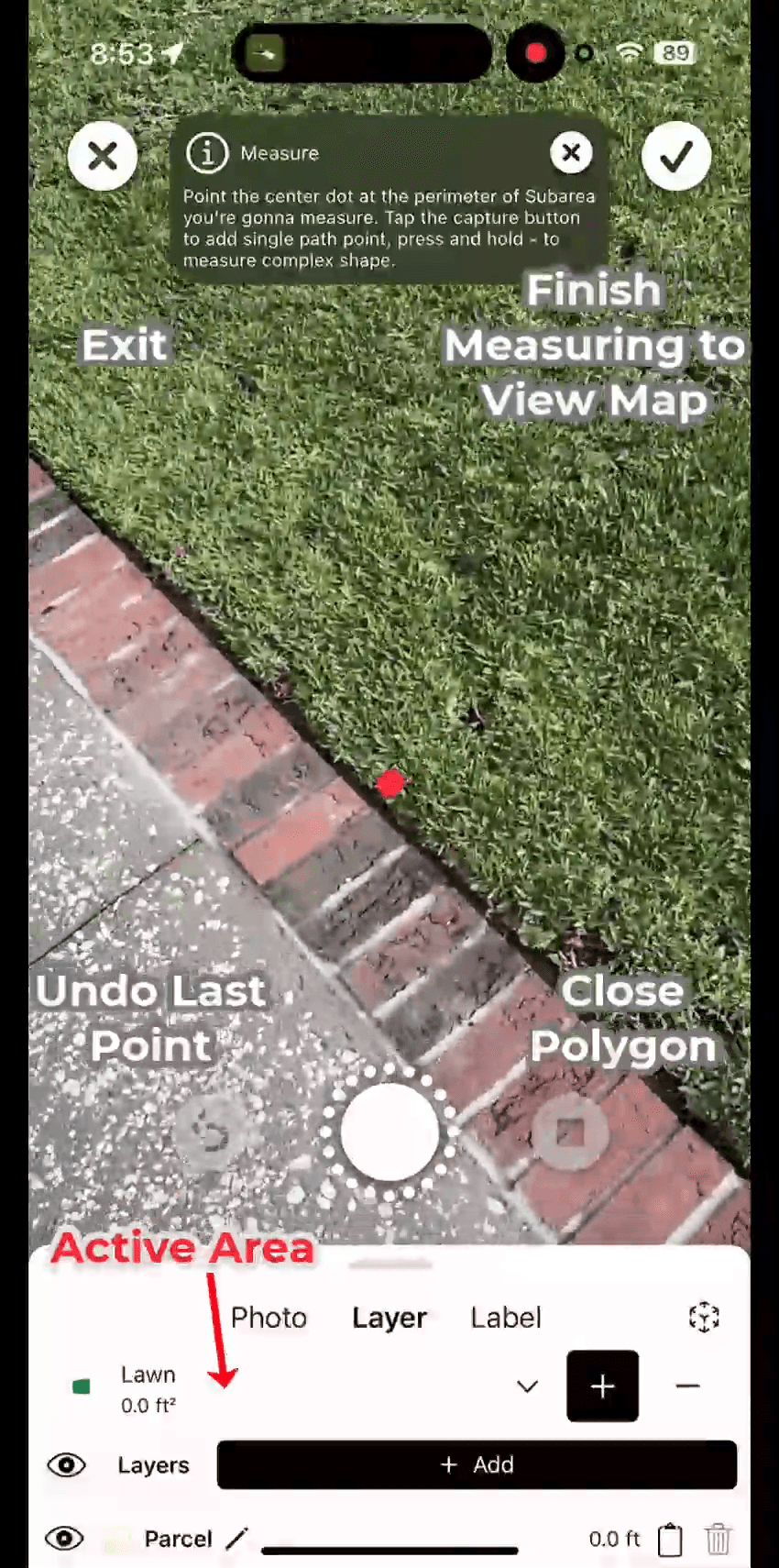
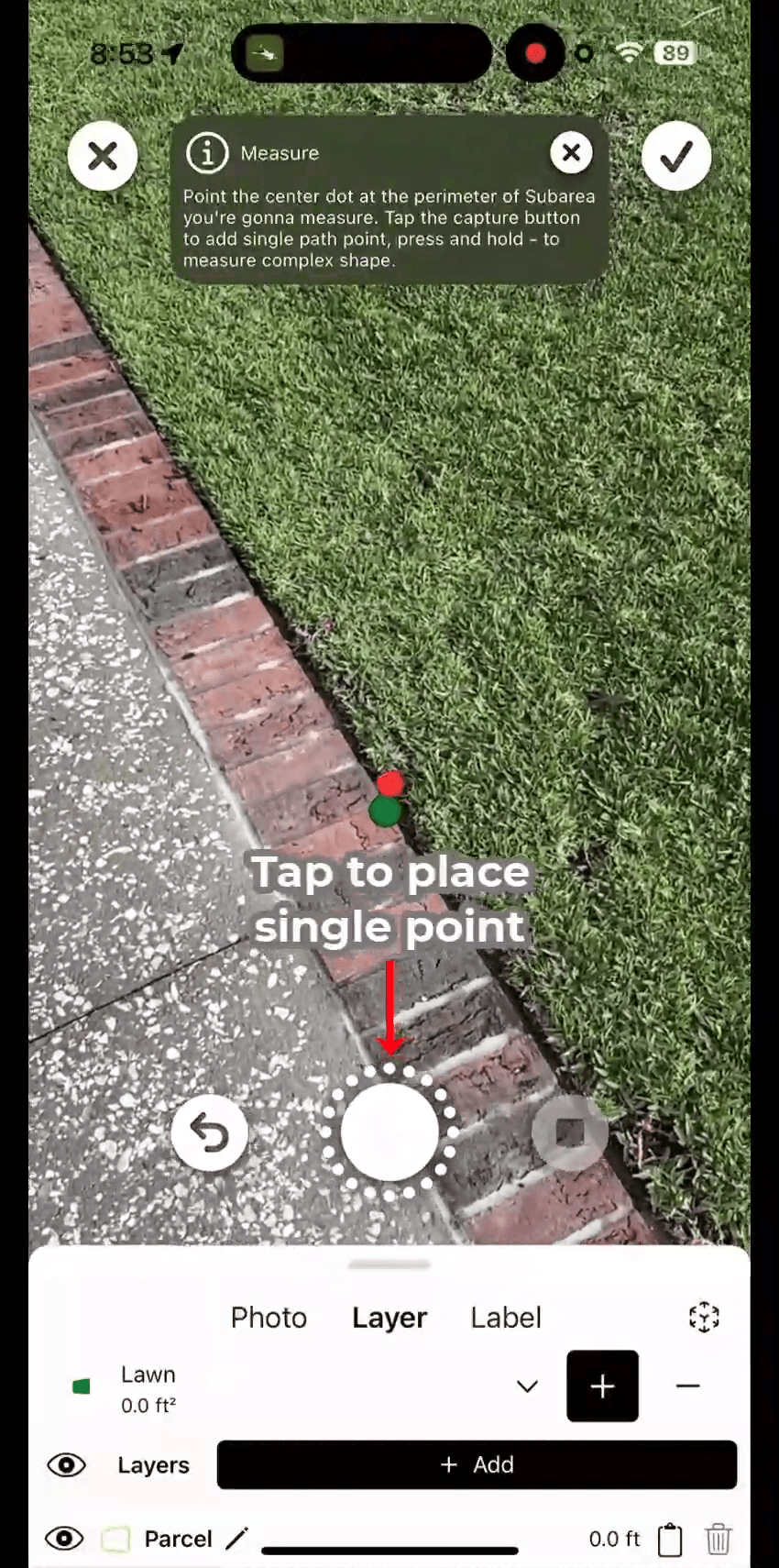
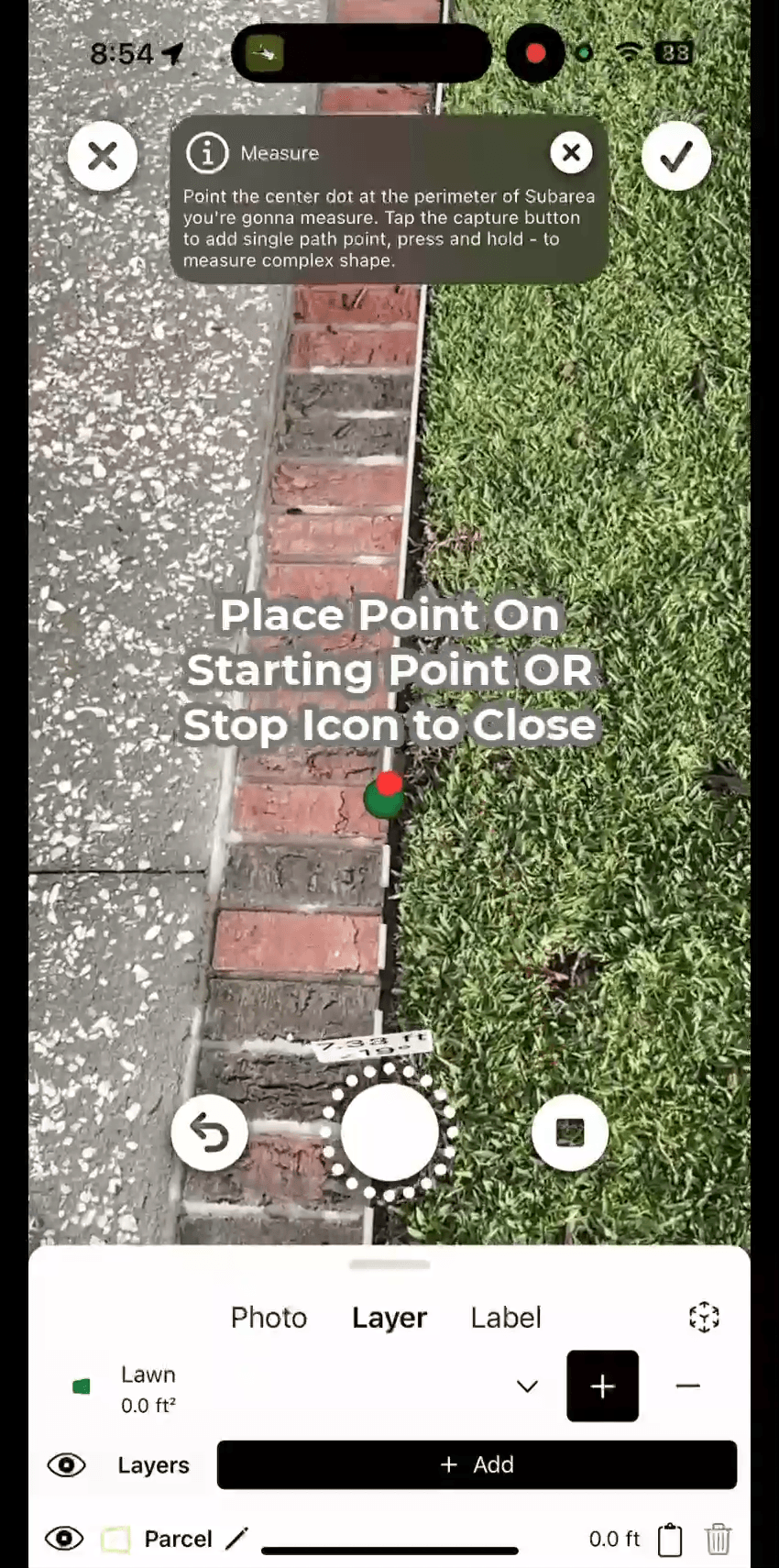
Continue placing points around the perimeter of the area.
To close the shape:
- Tap the starting point, or
- Tap the stop icon
Step 7: Review the Outline
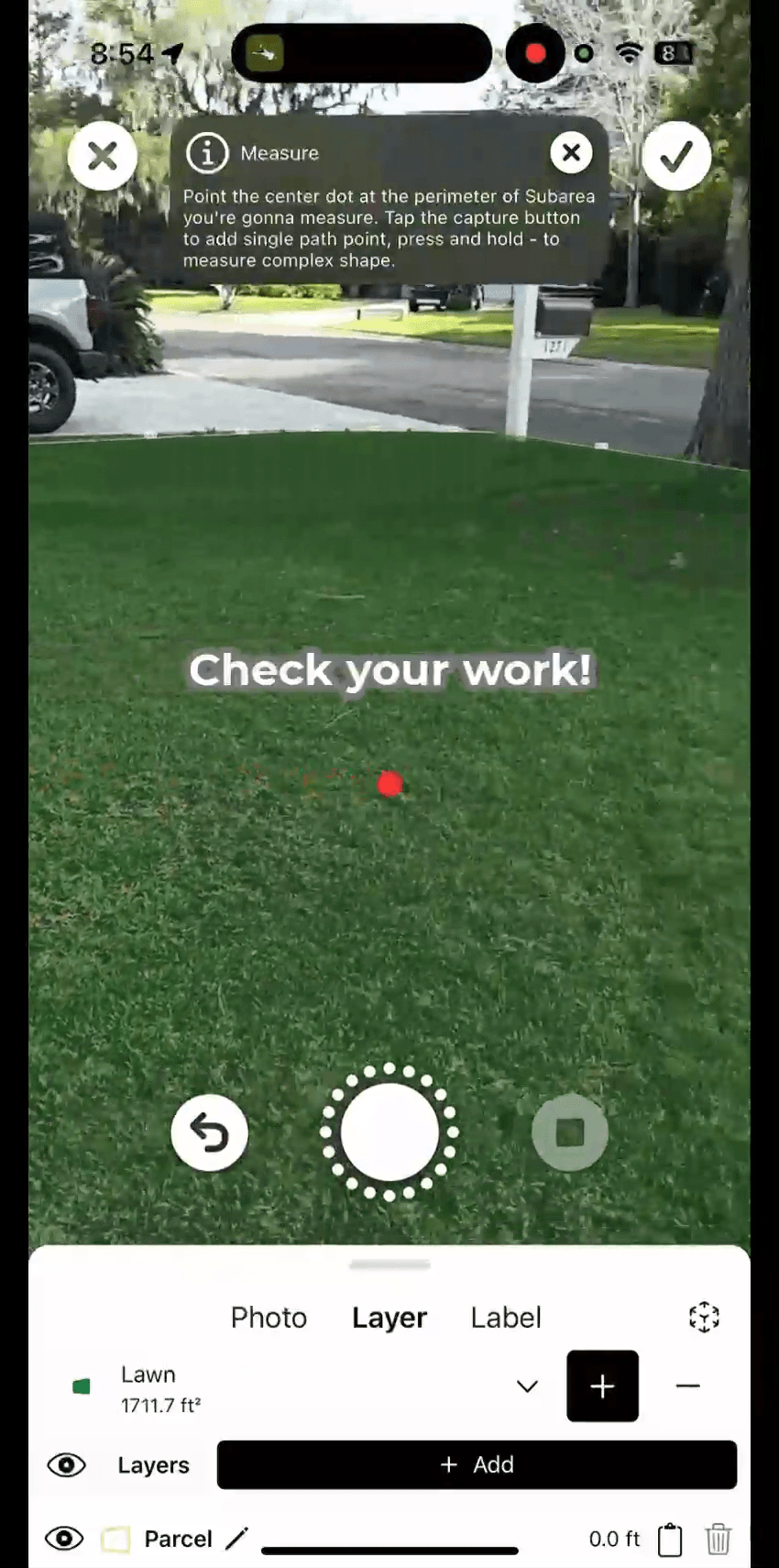
Check your work to ensure the polygon aligns with the actual area.
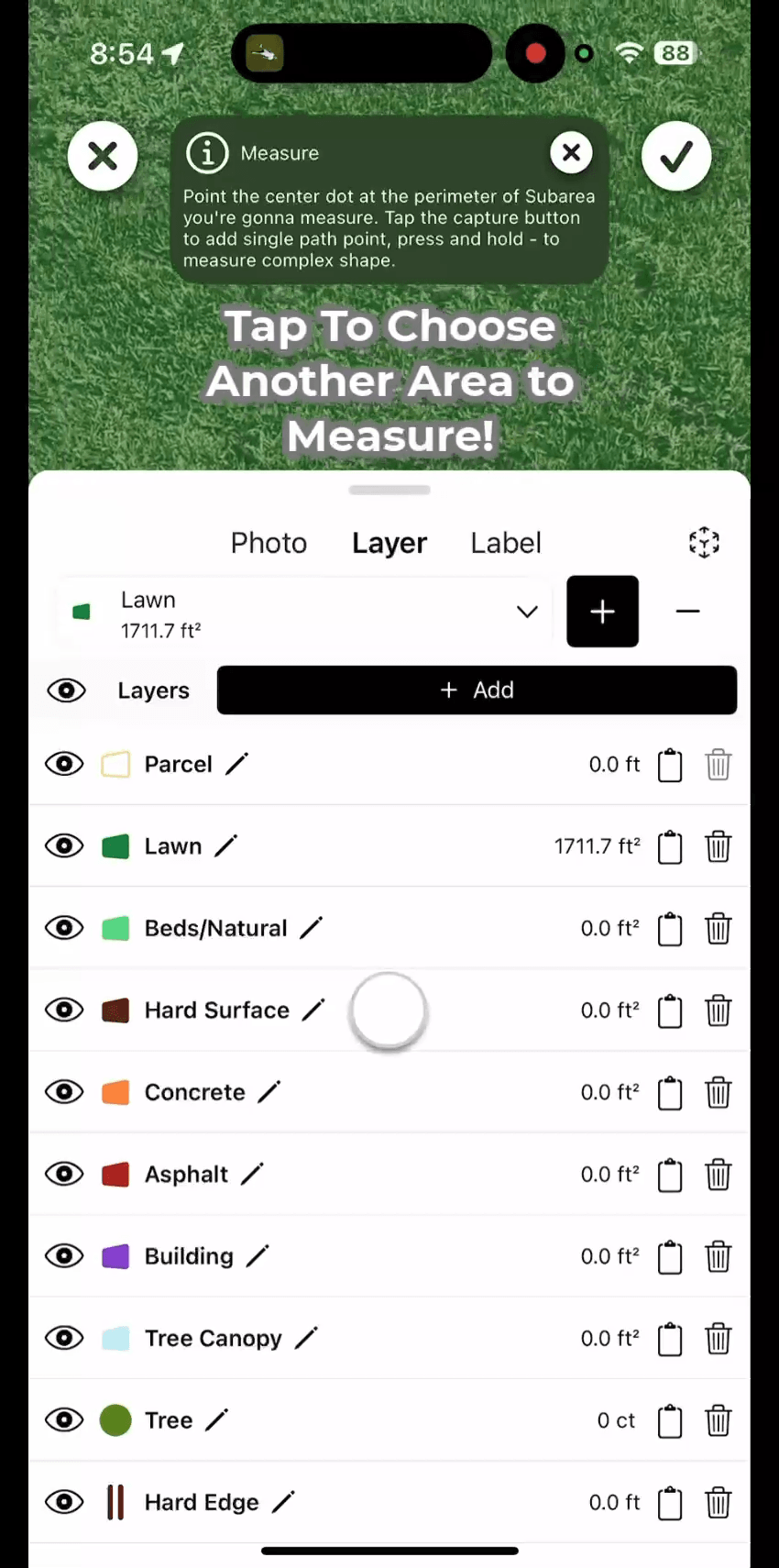
Step 8: Measure Additional Areas
You can tap to choose a different layer and measure more areas if needed.
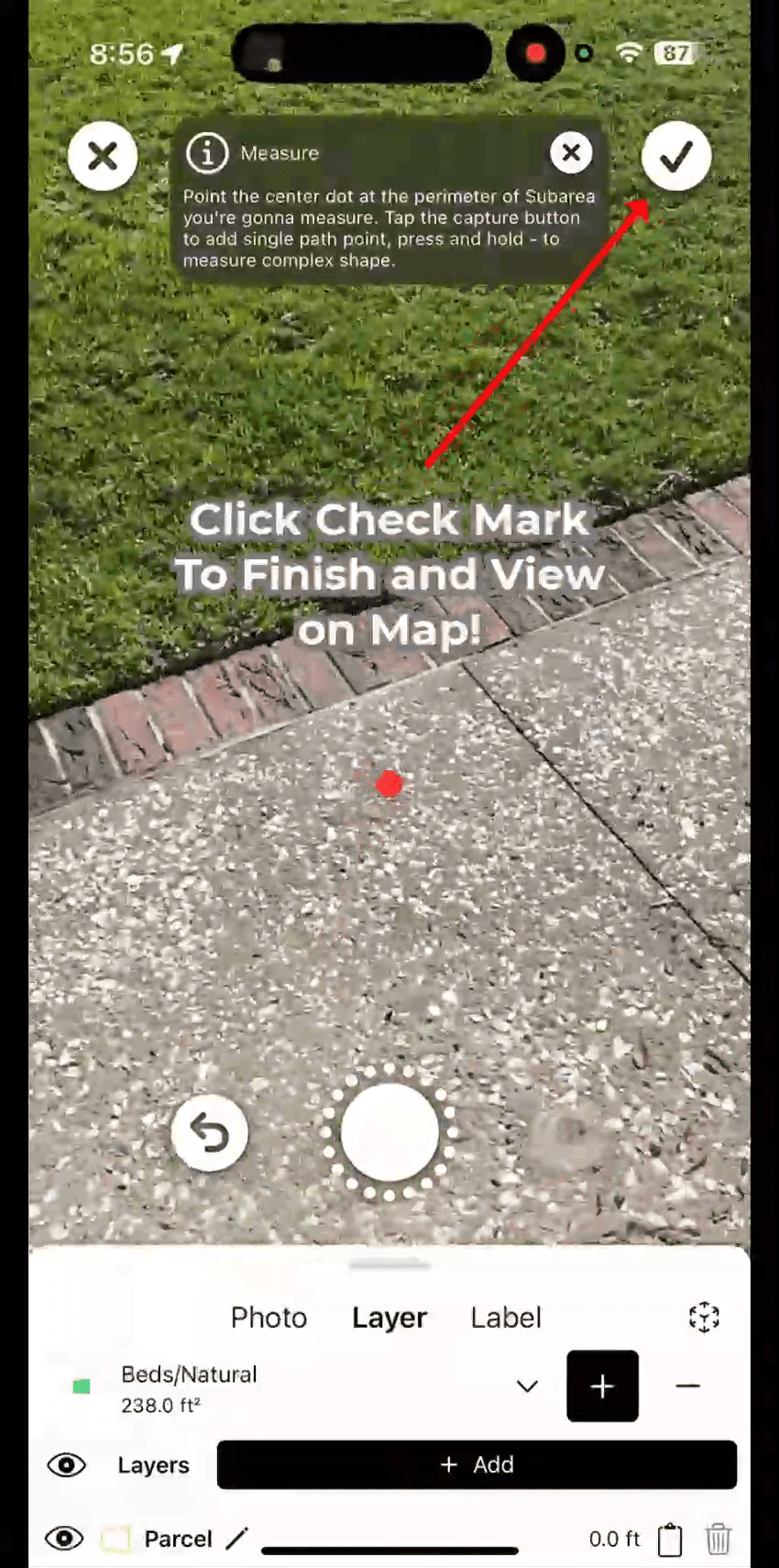
Step 9: Complete the Measurement
Tap the check mark in the top-right to finalize the current measurement.
Alignment & Results
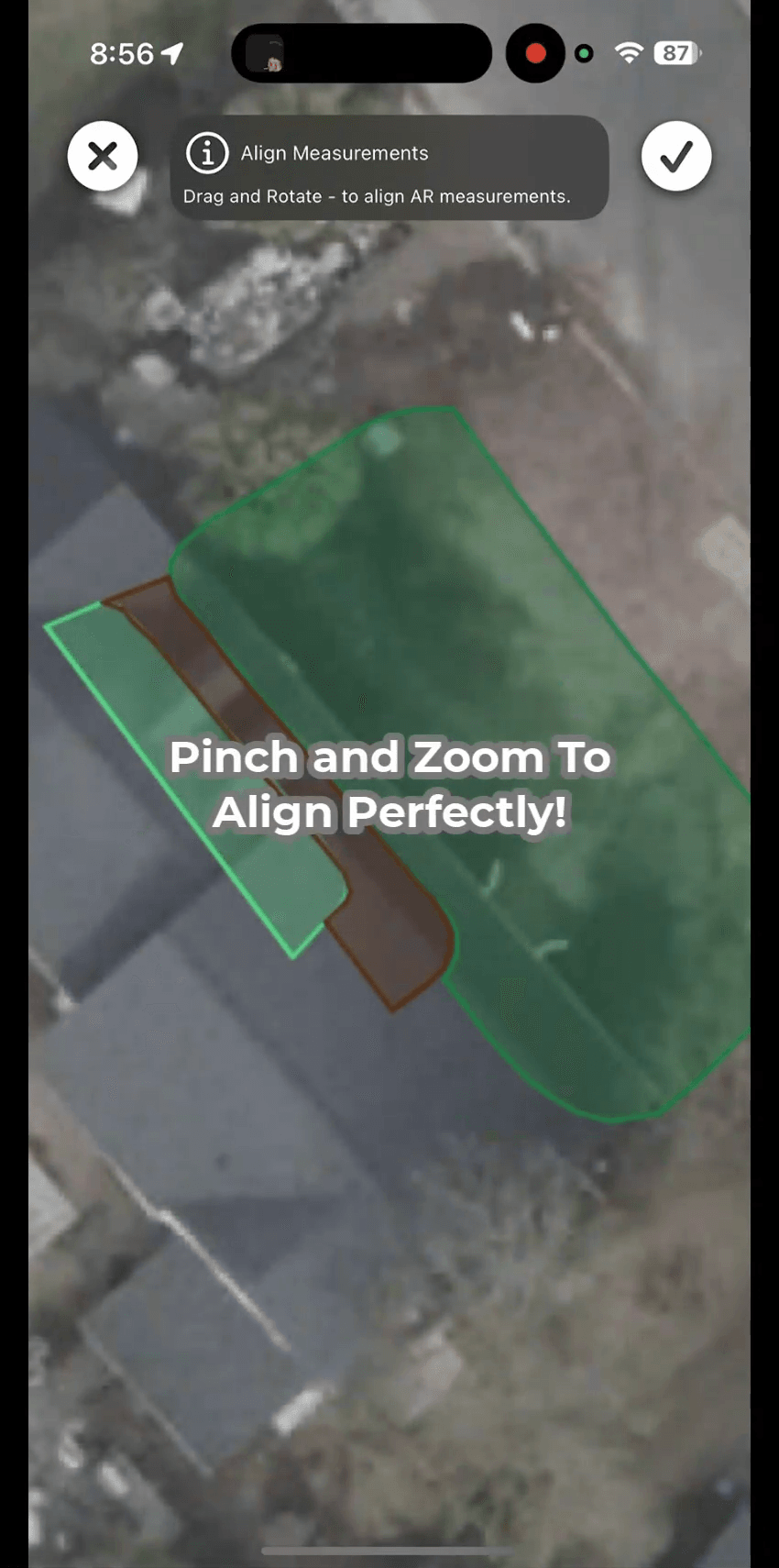
Step 10: Align Your Measurement to the Map
Use pinch-and-zoom gestures to rotate and align your on-device measurement with satellite imagery.
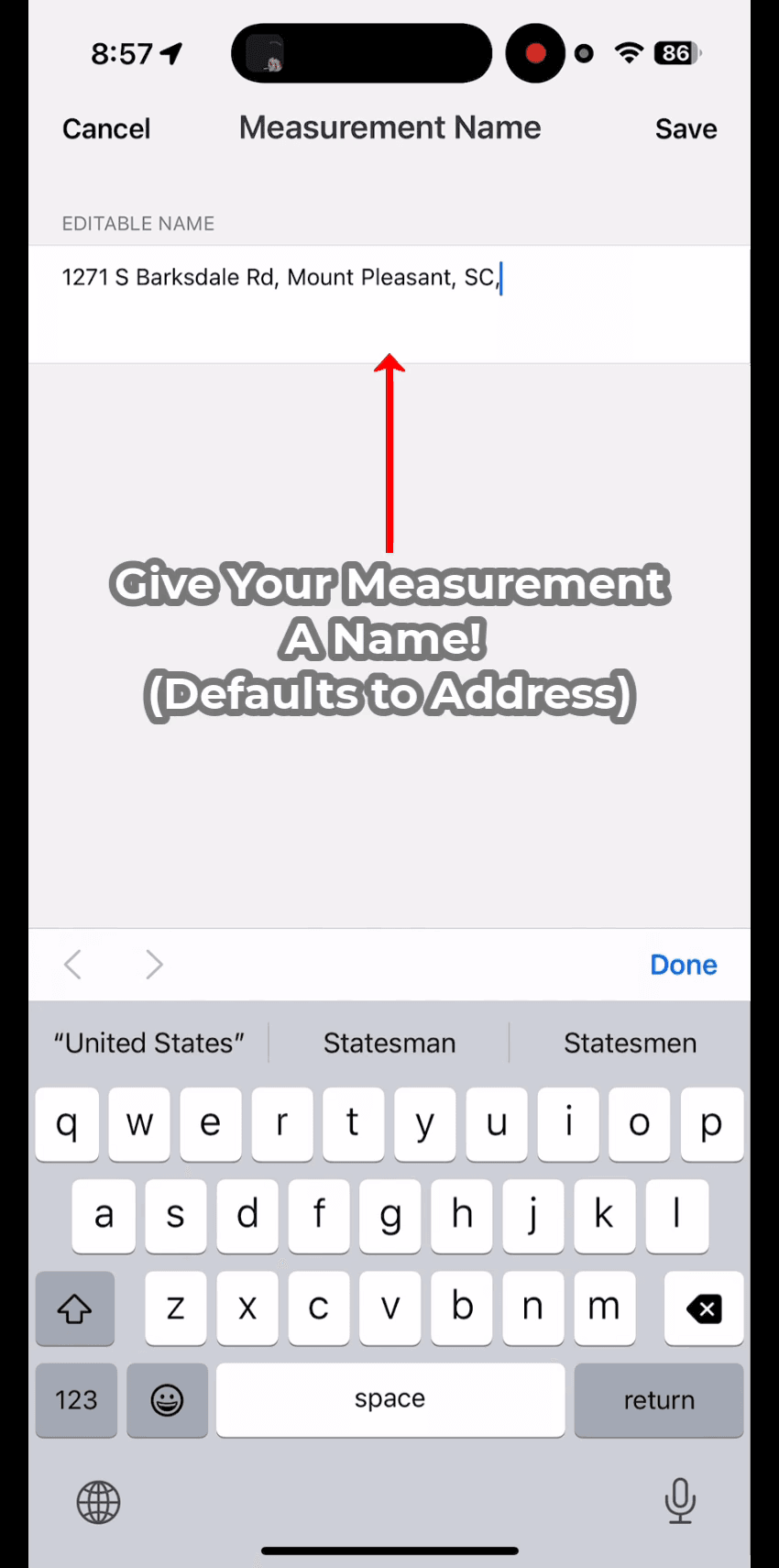
Step 11: Name the Measurement
Give your measurement a name—by default, it uses the address.
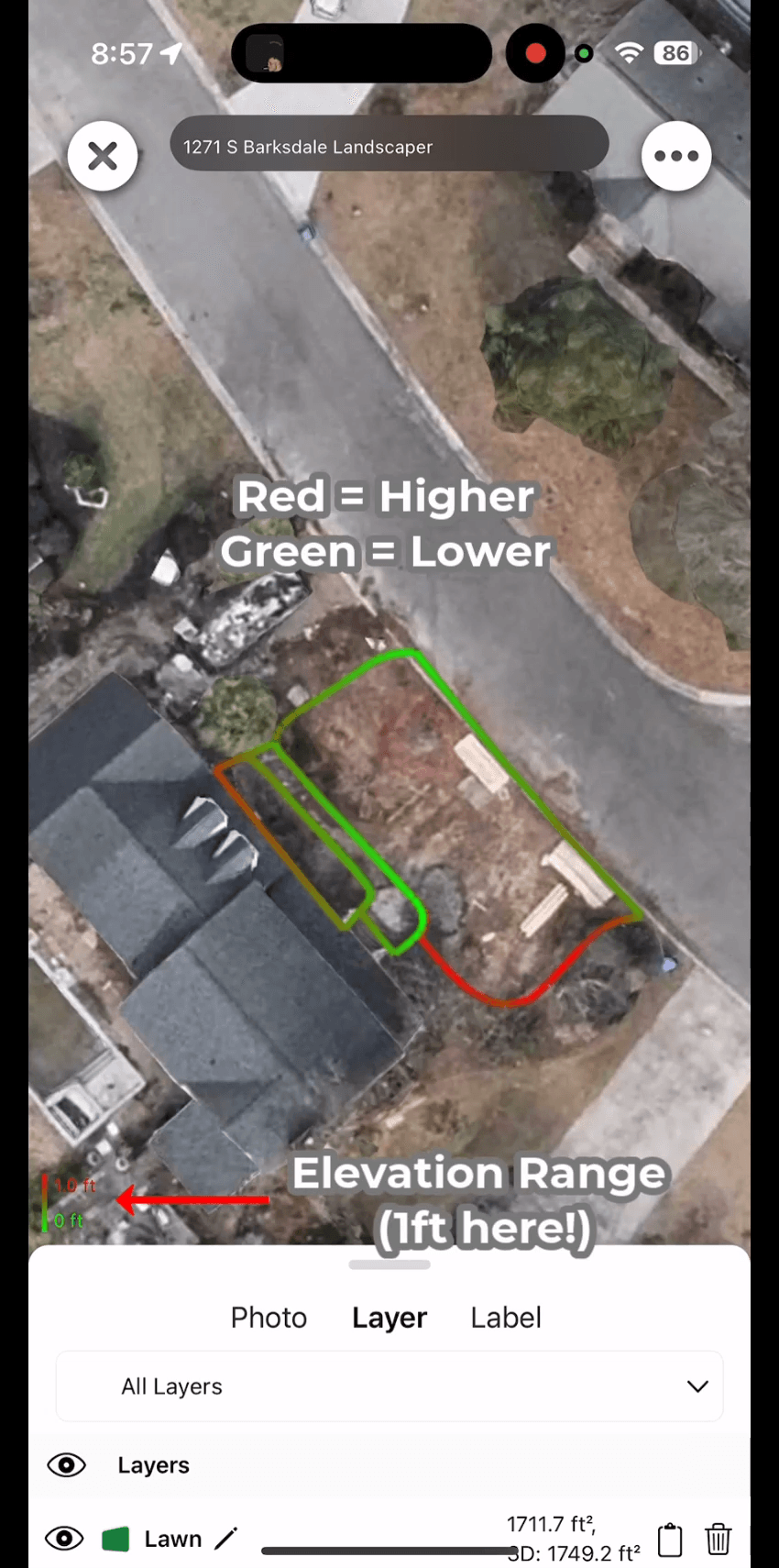
Step 12: Understand Elevation
The color gradient indicates slope:
- Red = Higher elevation
- Green = Lower elevation
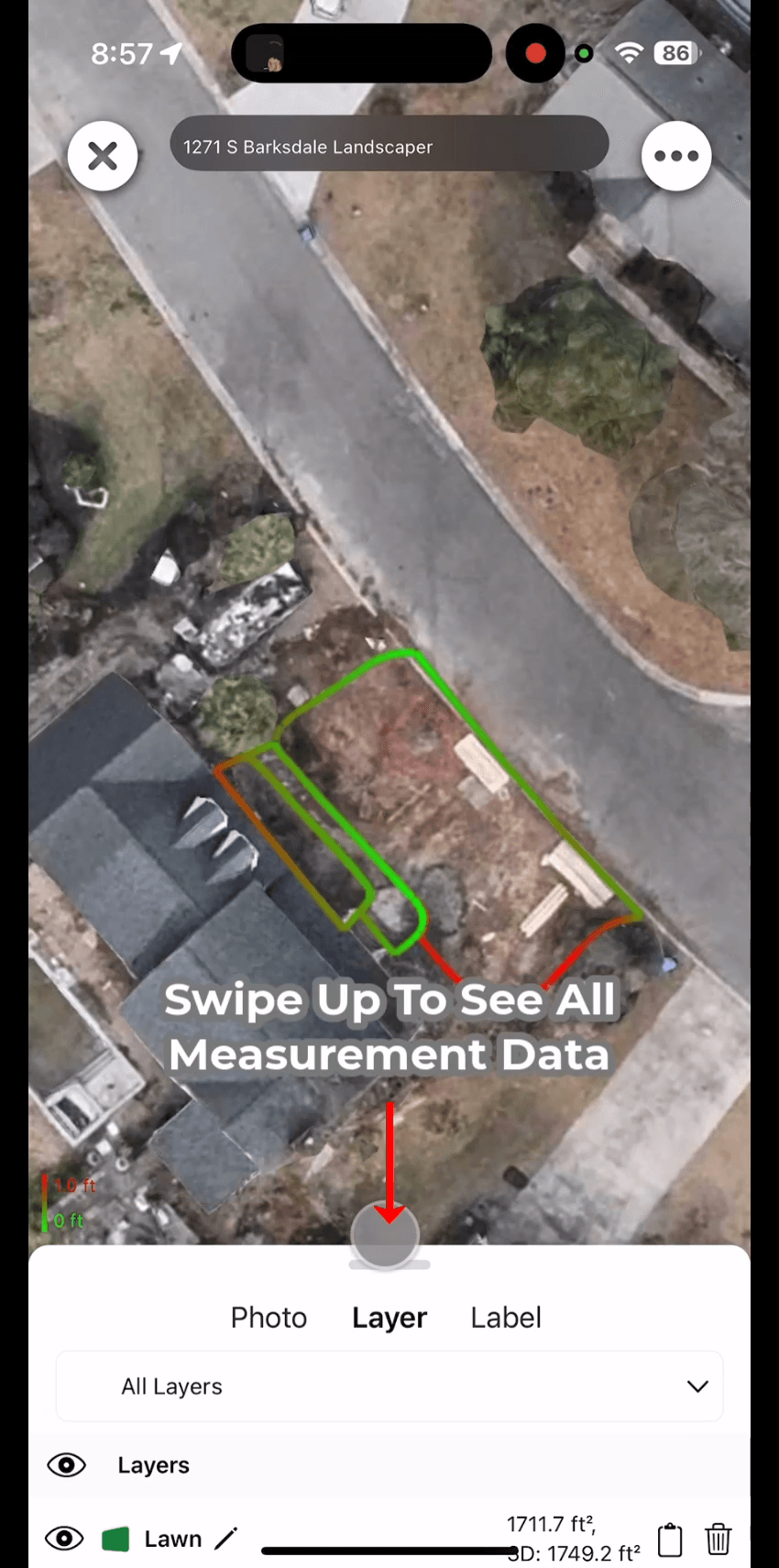
Step 13: View Measurement Data
Swipe up from the bottom to view detailed data for all layers.
You're Done!
Your On-Device Measurement is now complete and saved. You can continue editing, exporting, or syncing it from your LaunchPad workspace.
Was this article helpful?