Integrating Jobber with Launchpad Maps
This article explains how to connect your Jobber account with Launchpad Maps so your customer properties sync automatically and are ready for mapping, measurements, and imagery.
Purpose
Integrating Jobber with Launchpad Maps allows you to:
- Automatically sync customer properties from Jobber
- View and manage properties directly in Launchpad Maps
- Quickly purchase high-resolution imagery and AI measurements
- Keep property data aligned between both platforms
Before You Begin
Make sure you have:
- An active Jobber account with access to customer data
- An active Launchpad Maps account
- Admin or permission access to connect integrations in Jobber
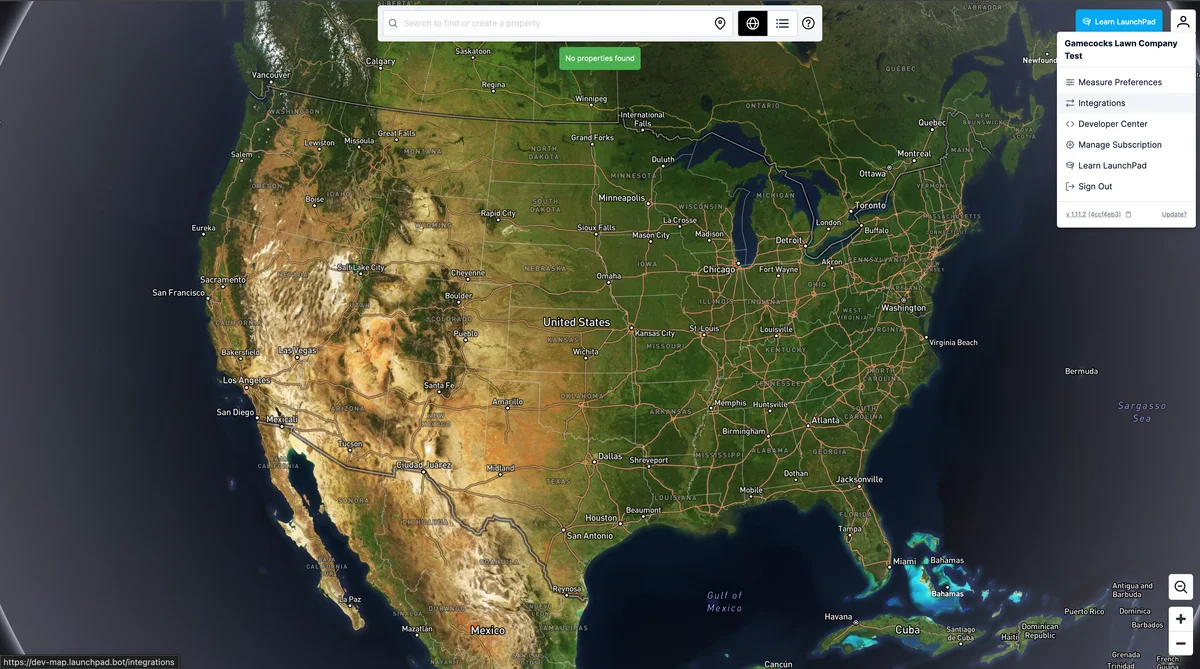
Step 1: Open Integrations in Launchpad Maps
- Log in to your Launchpad Maps account.
- From the main dashboard, navigate to Integrations.
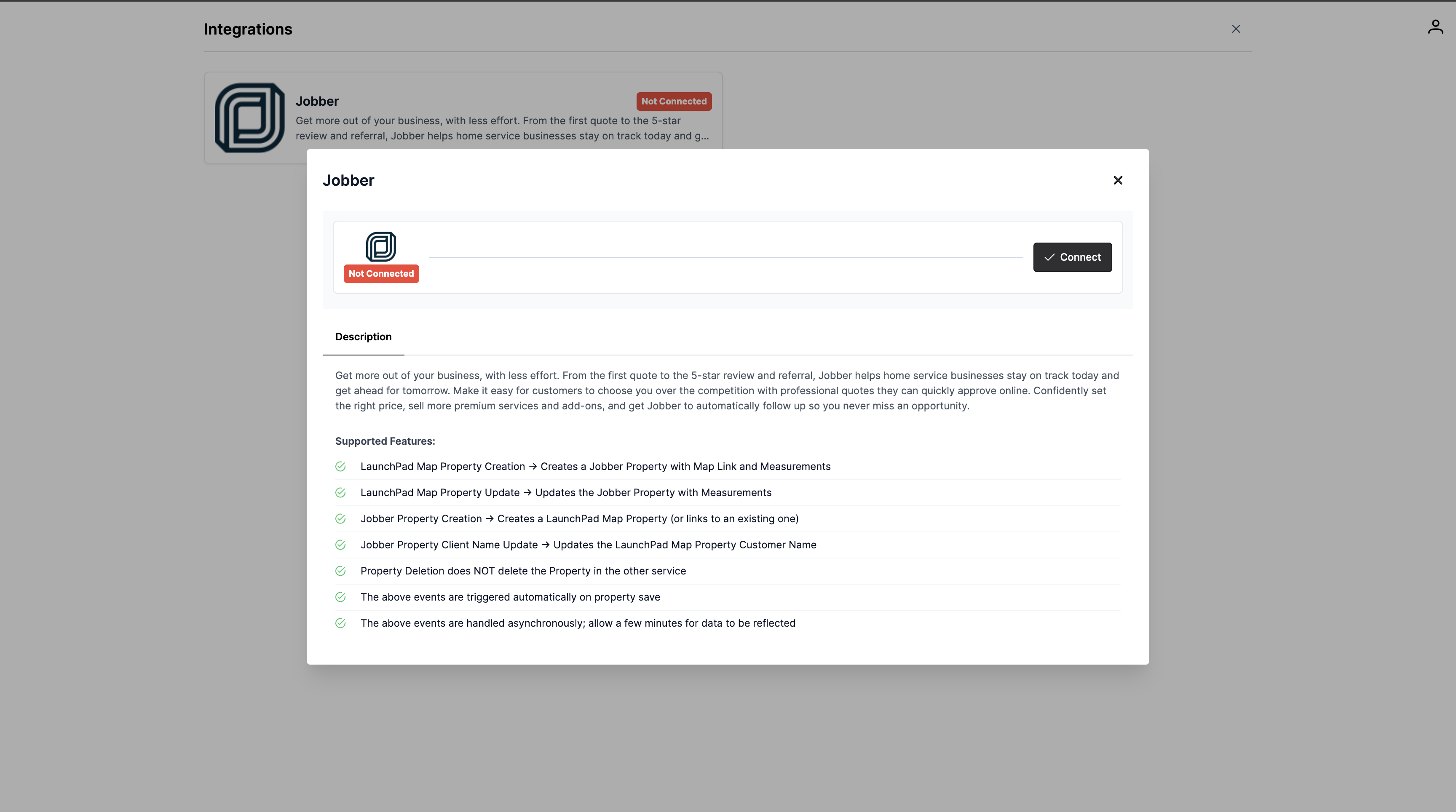
Step 2: Select Jobber Integration
- In the Integrations section, locate Jobber.
- Click Connect (or equivalent action) to begin setup.
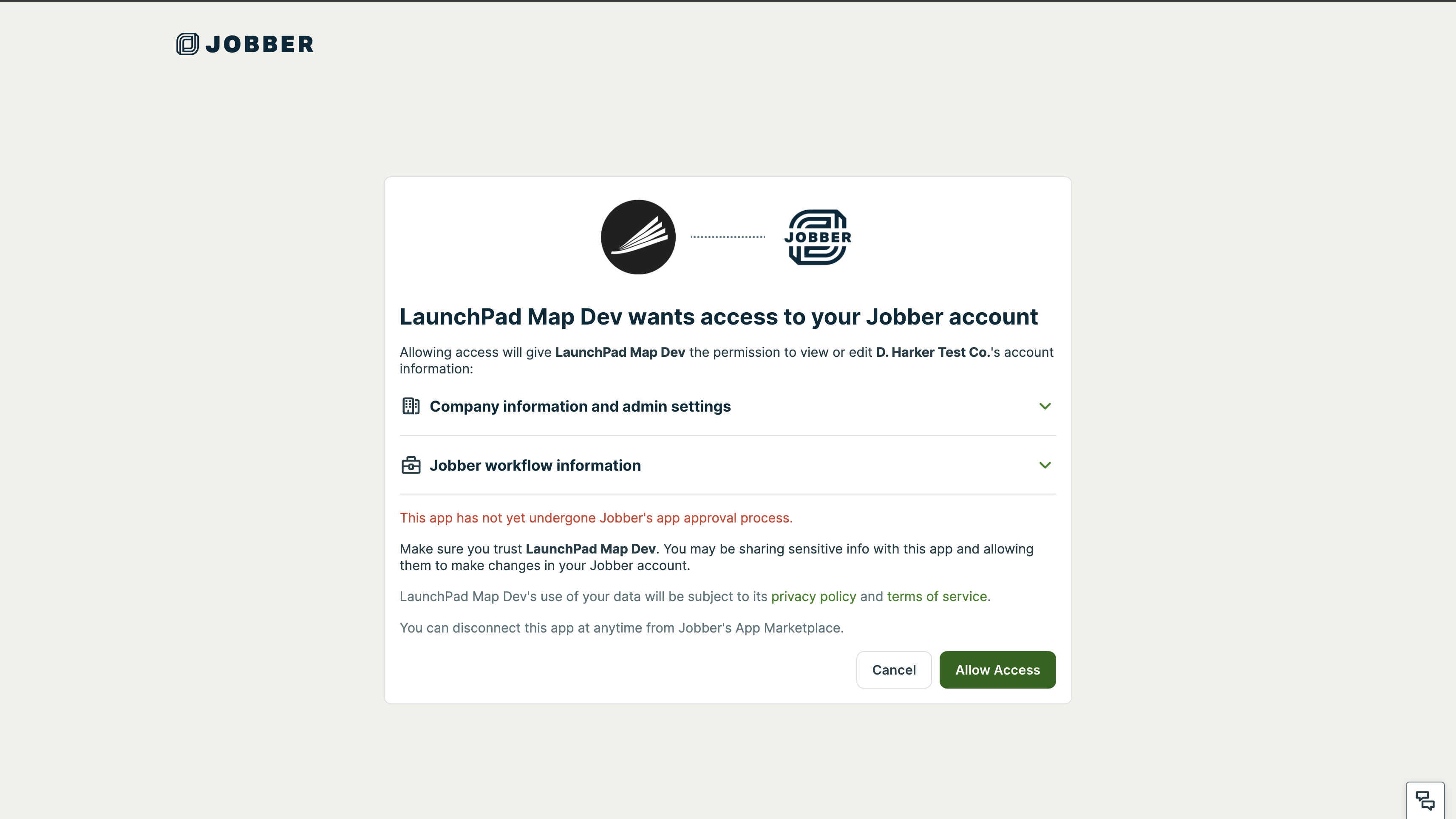
Step 3: Authorize Jobber Access
- You will be redirected to Jobber.
- Log in if prompted.
- Review the requested permissions.
- Click Authorize / Allow Access.
This allows Launchpad Maps to read your customer and property data.
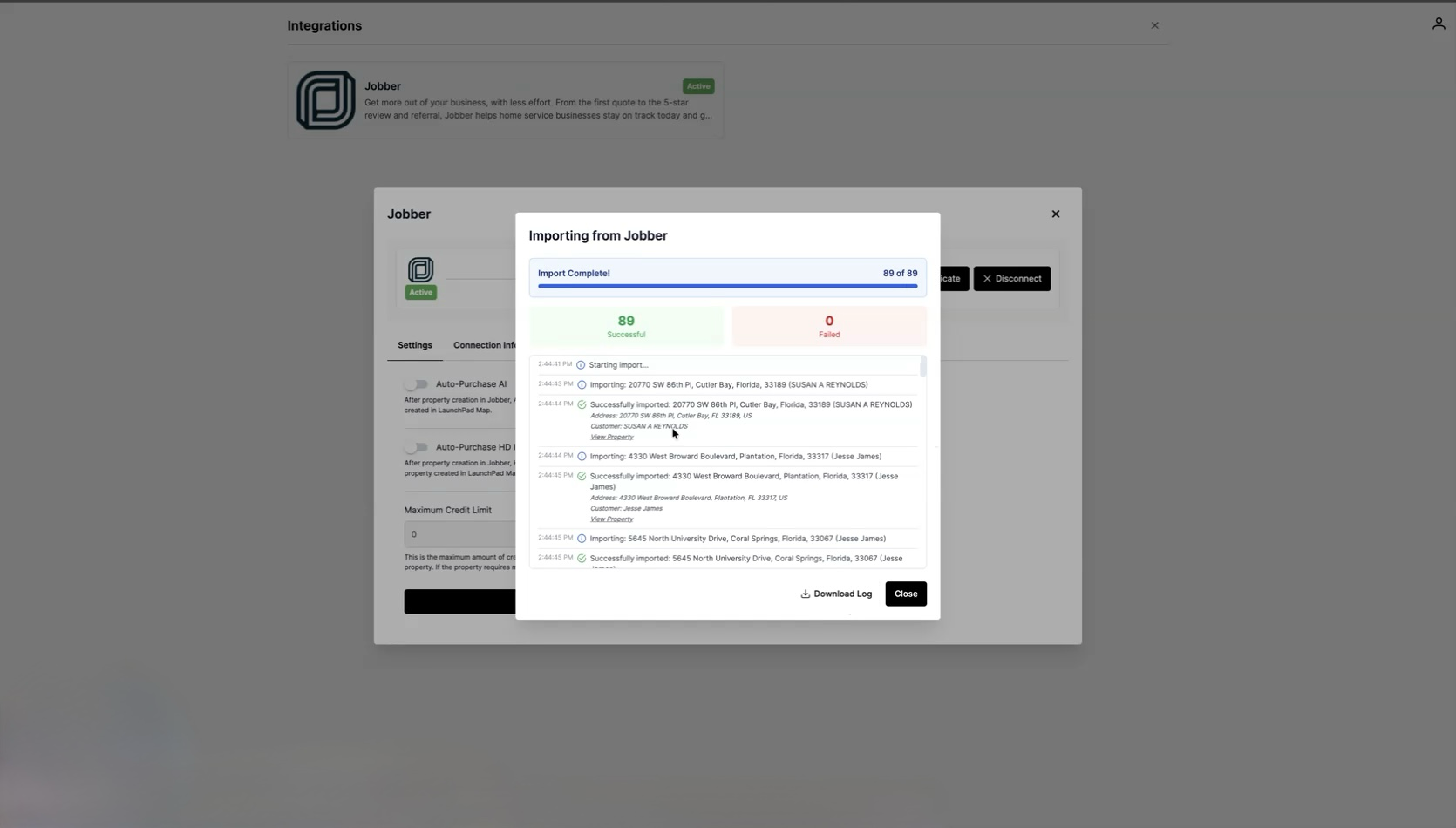
Step 4: Confirm Successful Connection
After authorization, you will be redirected back to Launchpad Maps.
- The Jobber integration should now show as Connected.
- Syncing will begin automatically.
Step 5: Sync Properties from Jobber
Once connected:
- Customer properties from Jobber will sync into Launchpad Maps
- Properties will appear in your Launchpad Maps account automatically
You do not need to manually upload addresses.
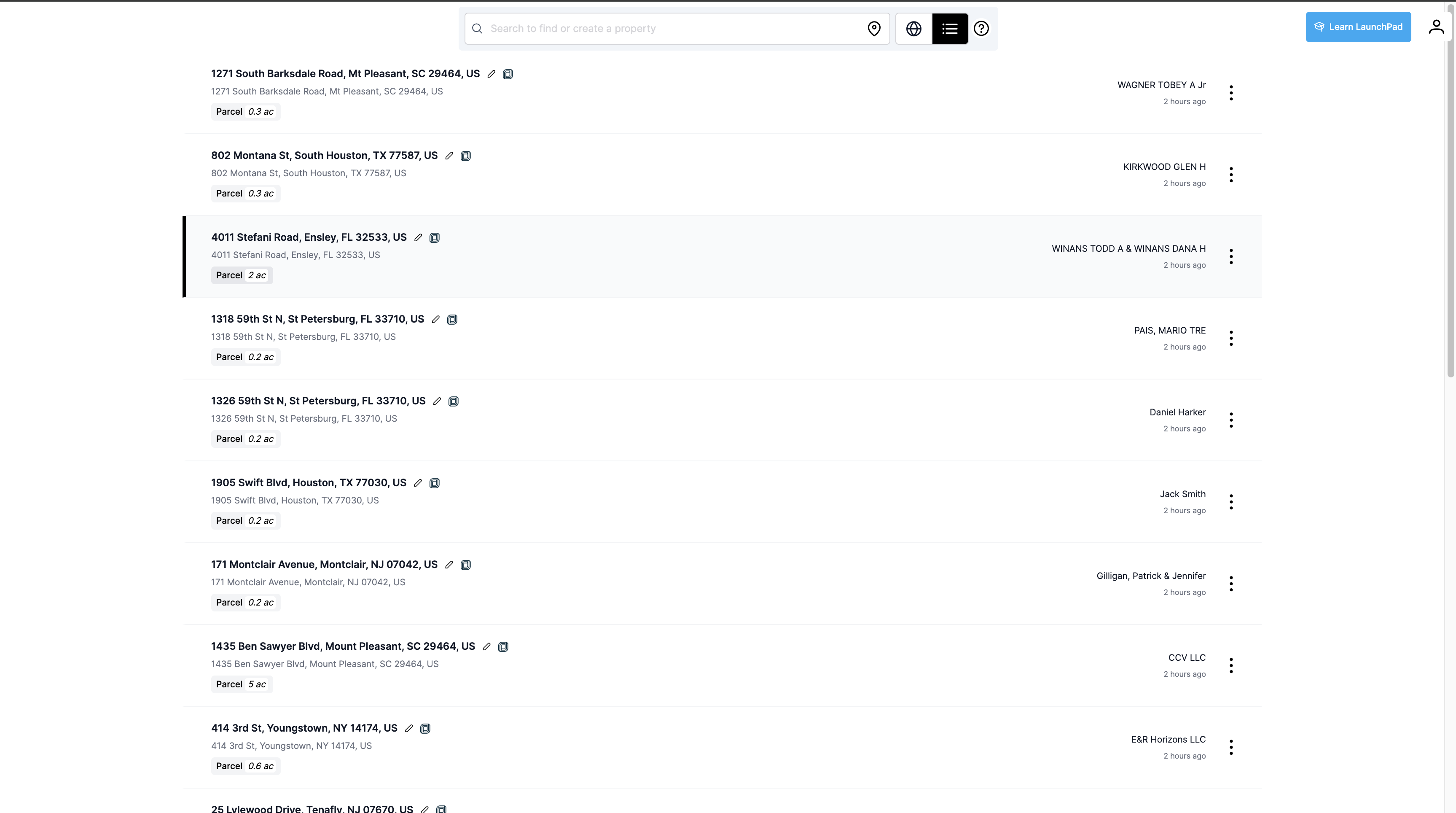
Step 6: Use Synced Properties
After syncing, you can:
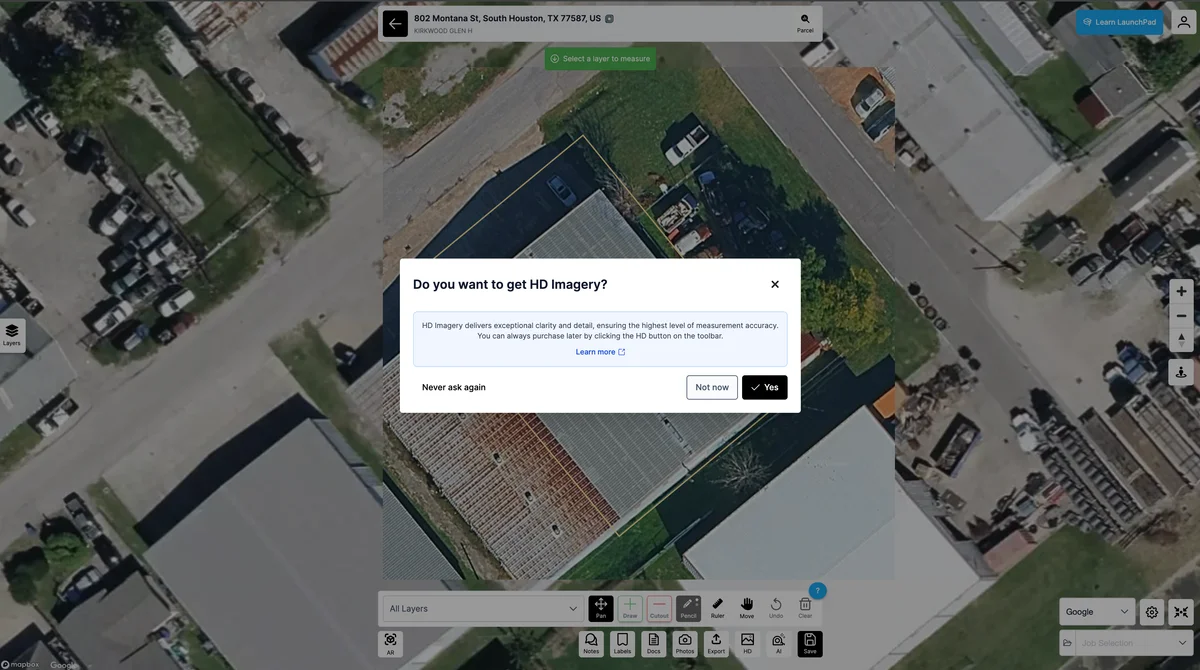
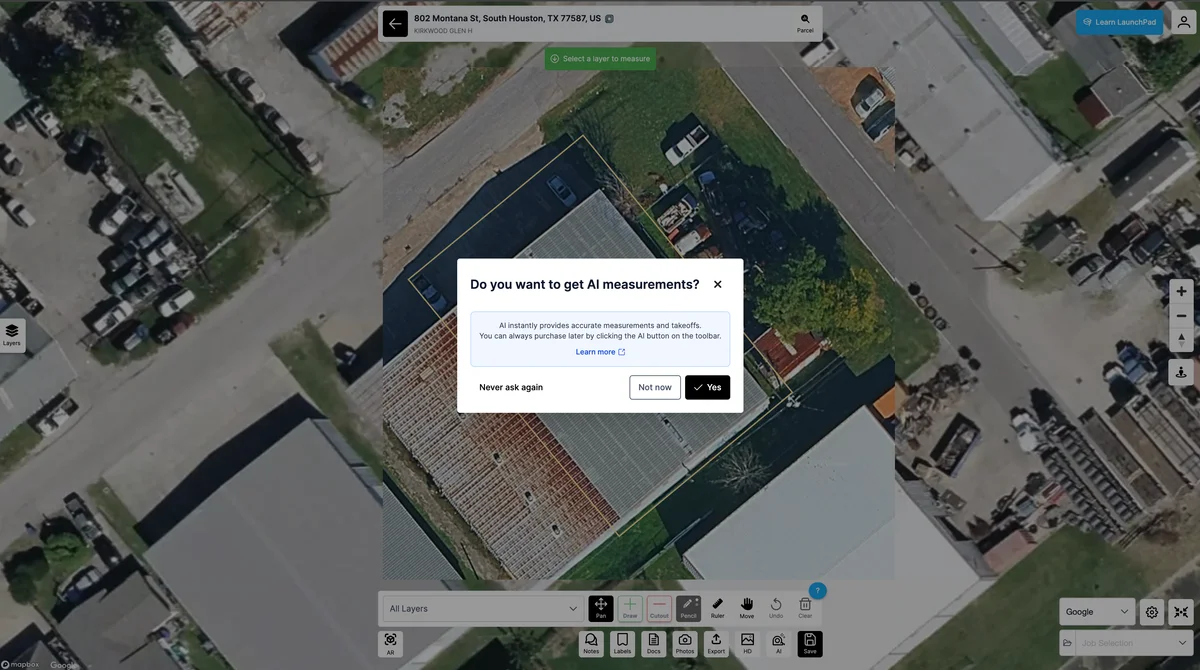
- Click into individual properties
- Purchase high-resolution imagery
- Run AI measurements
- Manage mapping and measurement workflows
All property data remains linked to Jobber.
Troubleshooting & Tips
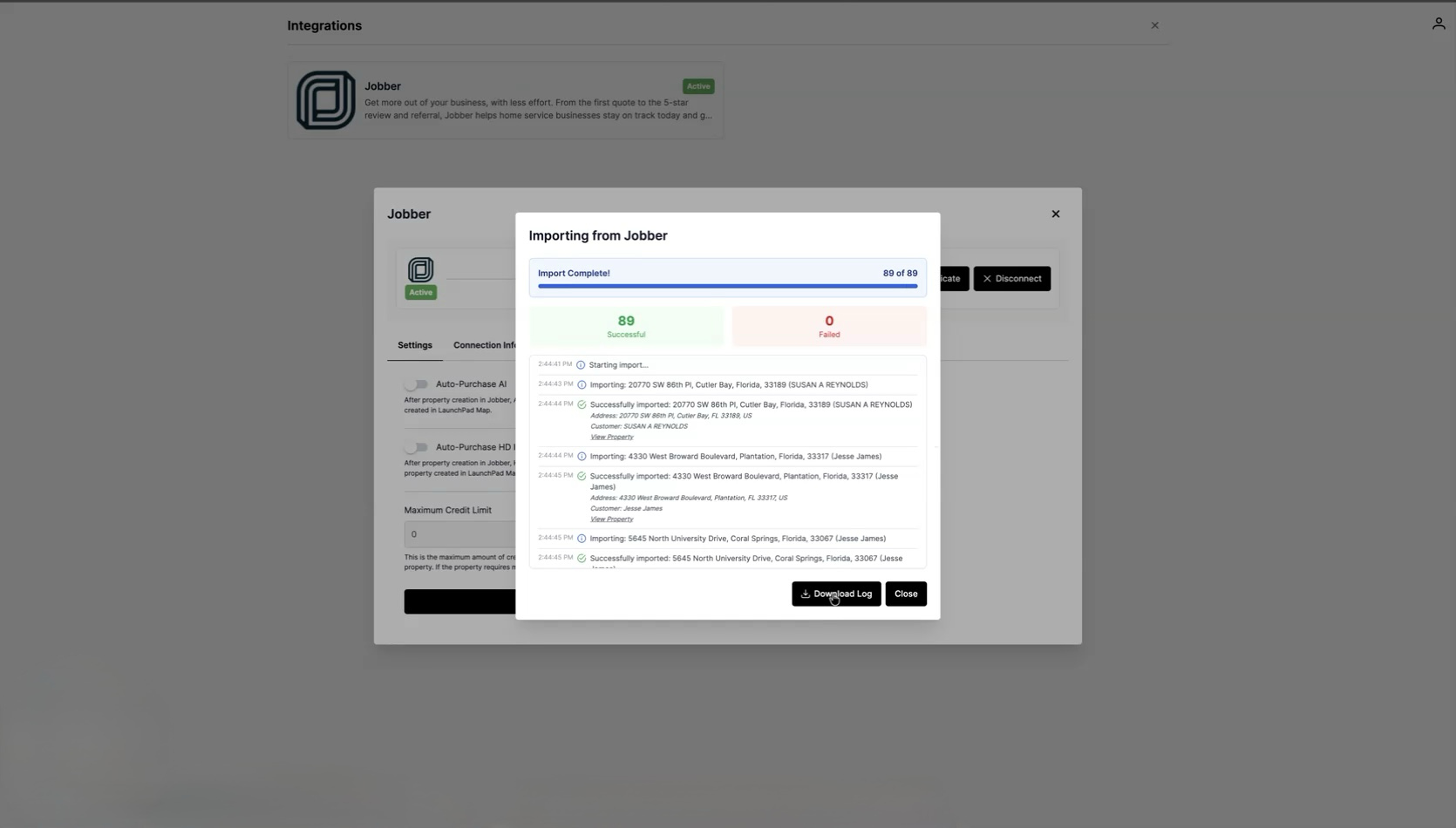
- If properties do not appear immediately, allow a few minutes for syncing
- Confirm you authorized the correct Jobber account
- Reconnect the integration if syncing stops
Tip: You can download sync logs to review which properties were imported successfully.
What Success Looks Like
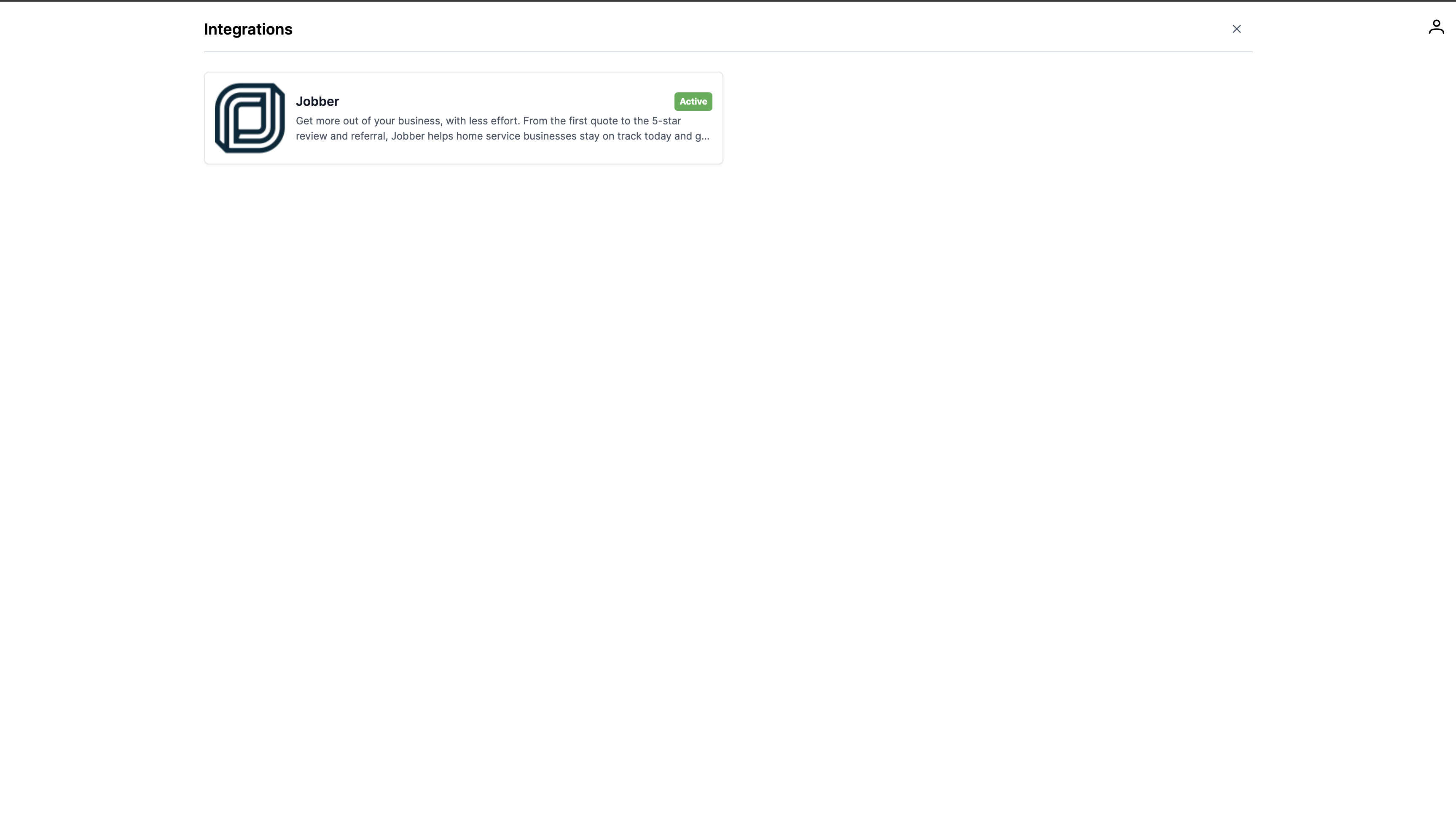
- Jobber shows as Active in Launchpad Maps
- Jobber customer properties are visible in Launchpad Maps
- Properties are clickable and ready for imagery or measurements
Key Integrations
Jabber (current and working) HubSpot, Zapier, and More (coming soon)
API Access
Launchpad offers a robust developer center. You can generate:
Webhooks Embed keys (put maps right on your website) Full-feature API (measurements, photos, docs—all accessible)
If you have an integration you need, let the Launchpad team know—they're prioritizing new ones based on user feedback.
Was this article helpful?